
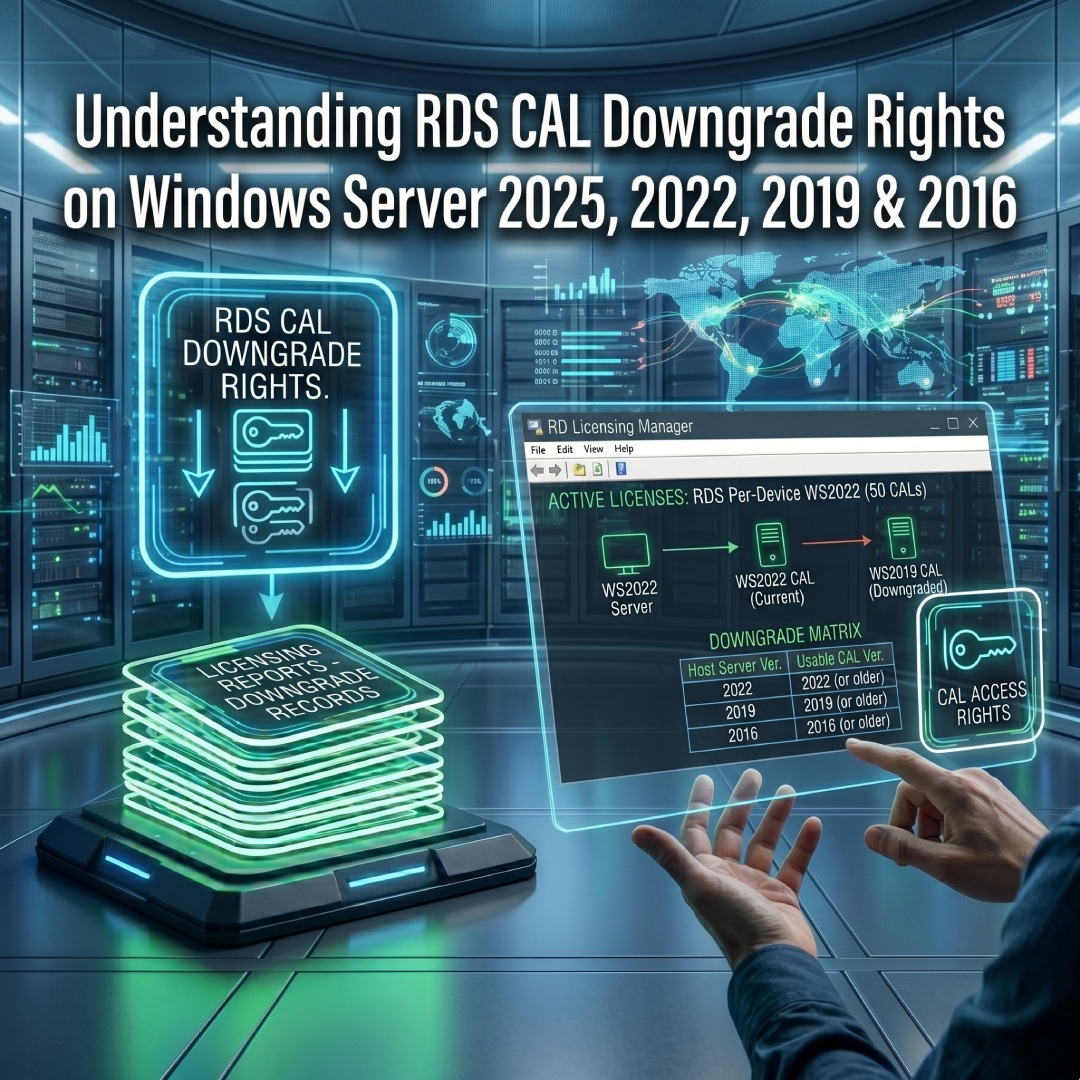
Understanding RDS CAL Downgrade Rights
When managing a Remote Desktop Services environment, hardware and software upgrades rarely happen all at once. You might purchase new Client Access Licenses (CALs) today, but still need them to authorize connections to older servers running in your datacenter.
Microsoft accommodates this reality through Downgrade Rights. This feature ensures that purchasing the latest RDS CALs will not break your existing infrastructure, allowing you to future-proof your licensing while maintaining uninterrupted access to legacy servers.
The Golden Rule of RDS Downgrade Rights
Your RDS CAL version must be equal to or greater than your RD Session Host version.
- A Windows Server 2025 RDS CAL can authorize a connection to a 2019 server..
- A Windows Server 2019 RDS CAL cannot authorize a connection to a 2022 server.
-

The Session Host Compatibility Matrix
Because newer licenses include downgrade rights by default, buying the latest CALs is the most strategic way to ensure continuous access across mixed server environments. Here is how the licenses map to your Session Hosts:

| If you purchase this RDS CAL... | It will authorize connections to these Session Hosts: |
|---|---|
| Windows Server 2025 | 2025, 2022, 2019, 2016 |
| Windows Server 2022 | 2022, 2019, 2016 |
| Windows Server 2019 | 2019, 2016 |
| Windows Server 2016 | 2016 only |
-
The License Server Requirement (Crucial)
While a newer CAL can authorize an older Session Host, your RD Licensing Server cannot install CALs that are newer than its own operating system.
For example, if your dedicated RD Licensing Server is running Windows Server 2019, it physically cannot accept a Windows Server 2025 RDS CAL product key. To utilize the 2025 downgrade rights across your older Session Hosts, you must first upgrade your RD Licensing Server OS to Windows Server 2025.

-
User CAL vs. Device CAL Downgrades
Downgrade rights apply equally to both Per User and Per Device CALs. As long as the version hierarchy rules are followed (CAL version ≥ Session Host version), the Remote Desktop Licensing Manager will automatically issue the correct authorization token based on the client's connection request, regardless of whether you track users or machines.

-
No Configuration Required
You do not need to manually "convert" or exchange a 2025 CAL to make it work on a 2019 server. When you install your newer CALs into the RD Licensing Manager, the server intrinsically understands the downgrade rights. It will seamlessly negotiate the connection and issue the appropriate authorization to the older Session Host in the background.

Admin Strategy: If you are expanding your workforce today but plan to upgrade your Session Hosts next year, buy the newest RDS CALs available. Install them on a modern Licensing Server, use downgrade rights to connect to your current environment today, and you won't need to repurchase licenses when you upgrade your Session Hosts tomorrow.
Future-Proof Your Remote Access
Ensure your infrastructure is fully authorized for both today's legacy servers and tomorrow's upgrades. Shop our genuine, perpetual RDS CALs and take advantage of seamless downgrade rights.
Author Bio

Microsoft Certified Professional
With over 20 years of experience deploying and managing enterprise Windows Server environments, Keloth leads technical implementation at RDS CAL Store. He specializes in Remote Desktop Services infrastructure, secure remote architecture, and helping IT teams seamlessly scale their official licensing.
Related Posts

How to Disable Remote Desktop Easy Print in Windows Server (2016-2025)
Home – How to Disable Remote Desktop Easy Print in Windows Server (2016-2025) How to Disable Remote Desktop Easy Print in Windows Server (2016-2025) Remote Desktop Easy Print is the default driver Windows uses to map local client printers into a remote session. While convenient, it strips away advanced printer features (like stapling, tray selection,…
How to Create a Remote Desktop User in Windows Server (2016, 2019, 2022 & 2025)
Home – How to Create a Remote Desktop User in Windows Server (2016, 2019, 2022 & 2025) How to Create a Remote Desktop User in Windows Server (2016, 2019, 2022 & 2025) Provisioning remote access for a new employee requires more than just creating a standard Windows account. To securely connect to a Session Host,…

How to Fix the CredSSP “Encryption Oracle Remediation” RDP Error
Home – How to Fix the CredSSP “Encryption Oracle Remediation” RDP Error How to Fix the CredSSP “Encryption Oracle Remediation” RDP Error If you are managing Windows Servers, you have likely encountered this terrifying error message when trying to connect via Remote Desktop: “An authentication error has occurred. The function requested is not supported… This…

How to Configure the RDS “Startup Environment” in Server 2016, 2019, 2022 & 2025
Home – How to Configure the RDS “Startup Environment” in Server 2016, 2019, 2022 & 2025 How to Configure the RDS “Startup Environment” in Server 2016, 2019, 2022 & 2025 If you recently upgraded your infrastructure, you likely noticed a glaring omission: Microsoft removed the Environment, Sessions, and Remote Control tabs from the Active Directory…