
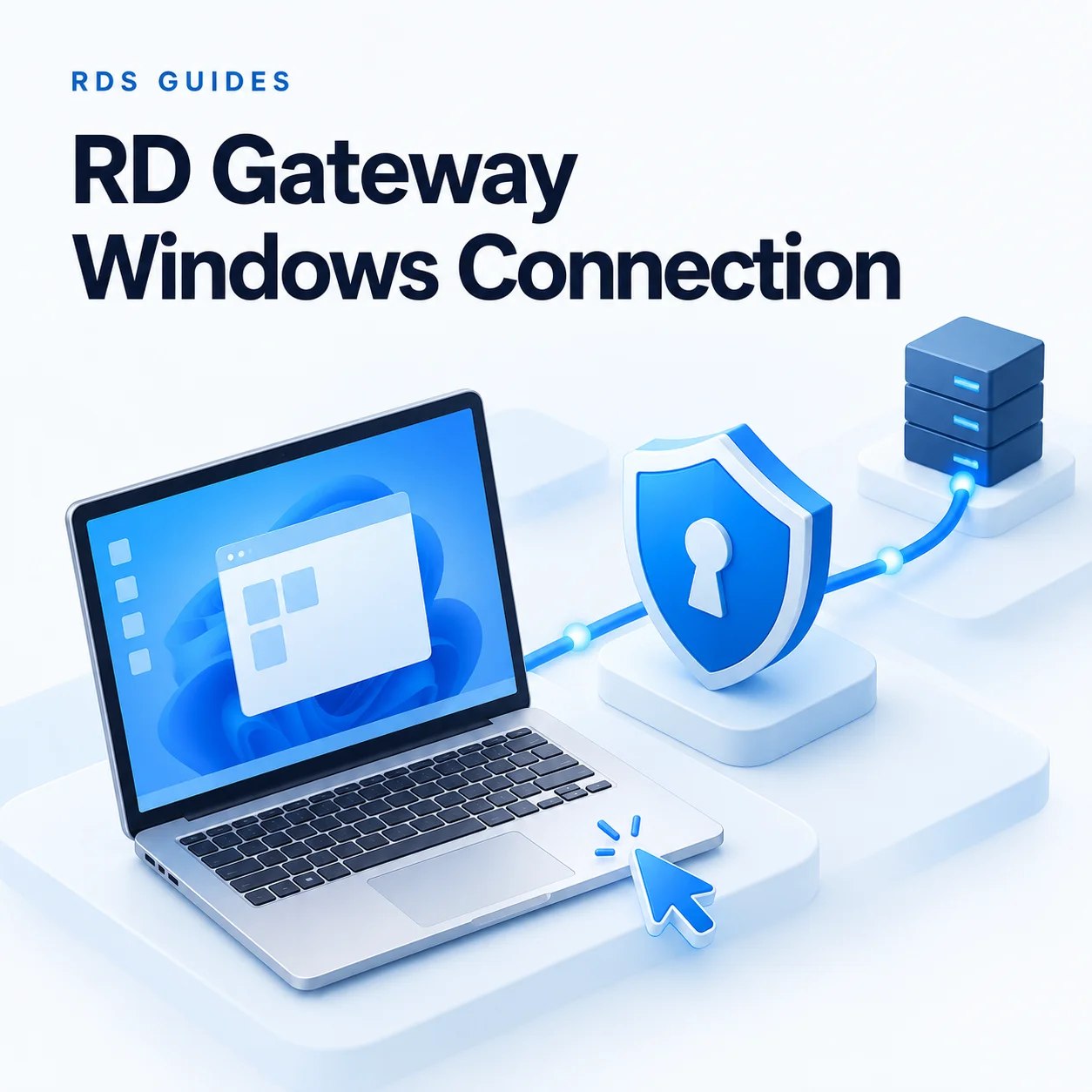
How to Connect Through RD Gateway from Windows
A Remote Desktop connection through a gateway uses two names: the computer you want to work on and the gateway that carries the connection. Putting the gateway name in both fields is a common setup mistake.
These instructions use the built-in Windows Remote Desktop Connection client, opened with mstsc. If your administrator supplies a published desktop, RemoteApp feed or signed RDP file, use that connection so its collection and redirection settings are preserved.
Before You Begin
- The gateway address and destination name supplied by your administrator.
- An account authorized by the gateway and permitted to sign in to the destination.
- Network access to the gateway and a client that trusts its certificate.
- Examples only: gateway rdg.example.com, destination rdsh01.ad.example.com, user [email protected]. Use your organization's actual values.
-

Open Remote Desktop Connection
Press Windows + R, enter mstsc and select OK. Choose Show Options to display the full settings.
If you were given an RDP file, open it from the approved source. Contact your administrator before modifying a signed file or replacing a published connection with a manually created one.

-
Enter the destination computer
On the General tab, enter the target supplied by your administrator in Computer, such as rdsh01.ad.example.com. Enter the account name in the format your organization uses.
This field identifies the desktop or published endpoint you want to reach. It does not identify the gateway. For a custom RDP port, use the exact computer-and-port value provided by your administrator.

-
Enter the gateway address
Open Advanced. In Connect from anywhere, select Settings, then Use these RD Gateway server settings. Enter the gateway's public hostname, such as rdg.example.com.
Enter the hostname rather than a web URL with an https:// prefix or an /RDWeb path. Keep the address consistent with the gateway certificate.

-
Choose sign-in and bypass options
Select the logon method your administrator specifies. Use the option to reuse gateway credentials for the remote computer only when the same account is intended for both.
For an initial gateway test, clear Bypass RD Gateway server for local addresses. Otherwise an internal connection might succeed directly and leave the gateway untested. Organization-managed policies may lock these settings; ask the administrator to review them.

-
Connect and verify the destination
Save the gateway settings, then select Connect. Enter your credentials and complete any MFA prompt configured by your organization. Only approve a prompt associated with the sign-in you just started.
If a certificate warning appears, stop and provide its details to your administrator. After connection, confirm the expected desktop or application opened. An administrator can verify the gateway path in RD Gateway Manager's Monitoring view.

-
Save an approved connection
For a manually configured connection, return to General → Save As and save the settings as an .rdp file. Keep it in a location available only to the intended user and follow your organization's policy on saved credentials.
After a gateway or collection change, refresh the managed feed or obtain an updated connection file. An old shortcut may retain the previous gateway name or target settings.

| Field | Example | What it identifies |
|---|---|---|
| Computer | rdsh01.ad.example.com | The target or published endpoint. |
| Gateway server | rdg.example.com | The public gateway endpoint. |
| User name | [email protected] | The authorized account. |
Frequently Asked Questions
Your device may have an enforced policy. The administrator should review the applied Remote Desktop gateway policies rather than trying to bypass them locally.
Admin Note: A useful support report includes the time of the failure, target name, gateway name, client version and exact error text. Never send your password or MFA code.
Managing Remote Access for a Team?
Administrators adding users to an RD Session Host should check the required RDS CAL coverage alongside the connection settings.
Author Bio

Microsoft Certified Professional
With over 20 years of experience deploying and managing enterprise Windows Server environments, Keloth leads technical implementation at RDS CAL Store. He specializes in Remote Desktop Services infrastructure, secure remote architecture, and helping IT teams seamlessly scale their official licensing.
Related Posts
Understanding RDS CAL Downgrade Rights
Home – Understanding RDS CAL Downgrade Rights Understanding RDS CAL Downgrade Rights When managing a Remote Desktop Services environment, hardware and software upgrades rarely happen all at once. You might purchase new Client Access Licenses (CALs) today, but still need them to authorize connections to older servers running in your datacenter. Microsoft accommodates this reality…

How to Disable Remote Desktop Easy Print in Windows Server (2016-2025)
Home – How to Disable Remote Desktop Easy Print in Windows Server (2016-2025) How to Disable Remote Desktop Easy Print in Windows Server (2016-2025) Remote Desktop Easy Print is the default driver Windows uses to map local client printers into a remote session. While convenient, it strips away advanced printer features (like stapling, tray selection,…

How to Create a Remote Desktop User in Windows Server (2016, 2019, 2022 & 2025)
Home – How to Create a Remote Desktop User in Windows Server (2016, 2019, 2022 & 2025) How to Create a Remote Desktop User in Windows Server (2016, 2019, 2022 & 2025) Provisioning remote access for a new employee requires more than just creating a standard Windows account. To securely connect to a Session Host,…

How to Fix the CredSSP “Encryption Oracle Remediation” RDP Error
Home – How to Fix the CredSSP “Encryption Oracle Remediation” RDP Error How to Fix the CredSSP “Encryption Oracle Remediation” RDP Error If you are managing Windows Servers, you have likely encountered this terrifying error message when trying to connect via Remote Desktop: “An authentication error has occurred. The function requested is not supported… This…