
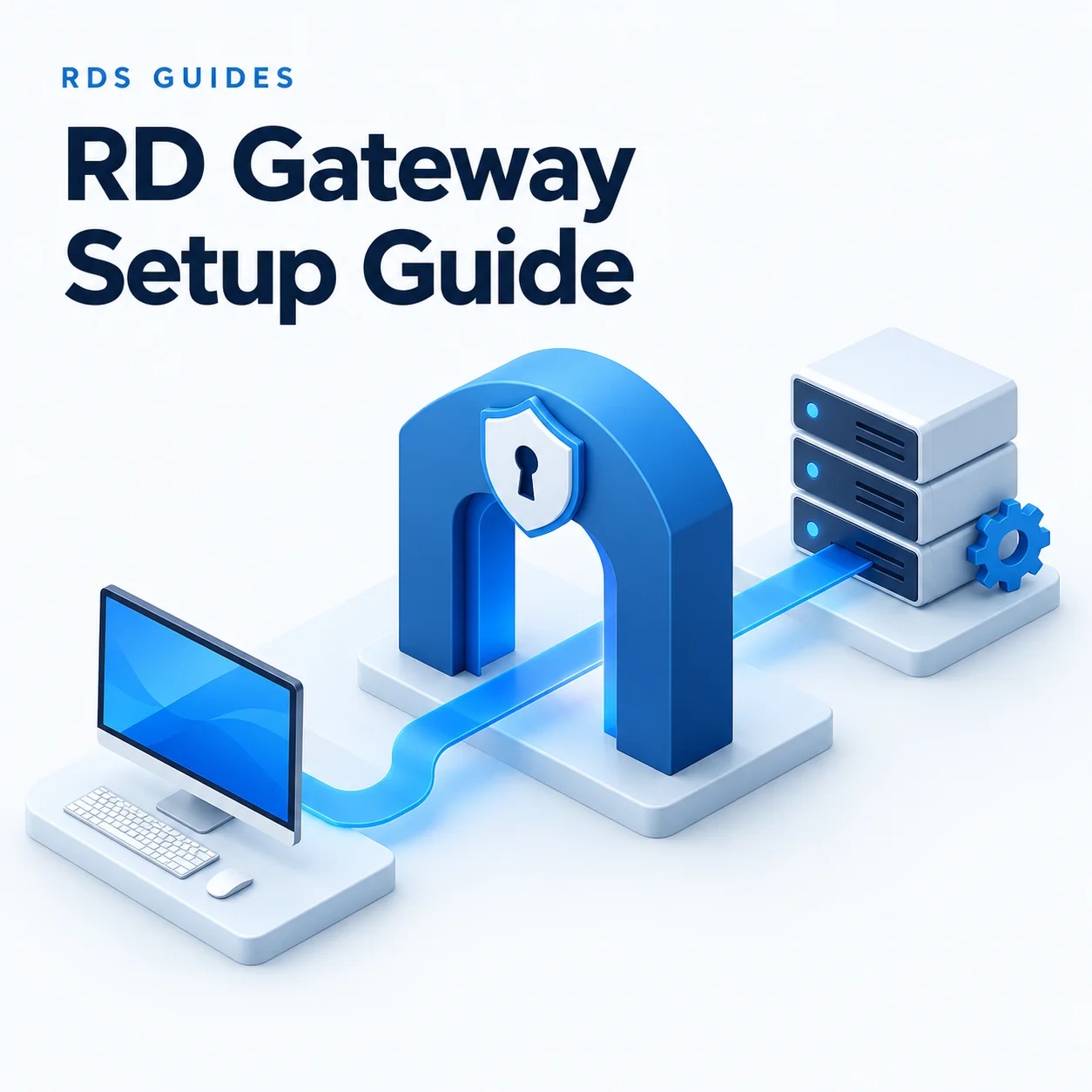
How to Set Up RD Gateway on Windows Server 2022 and 2025
Remote Desktop Gateway gives remote users a controlled route to internal desktops and applications over an encrypted internet connection. Users connect to the gateway's public address, and the gateway relays their session to an approved internal computer.
This guide builds a single gateway using Active Directory groups and locally managed authorization policies. It assumes your destination computer already accepts Remote Desktop connections internally. An existing RDS collection should continue to use its published connection.
Before You Begin
- A patched Windows Server 2022 or 2025 server with Desktop Experience, joined to your domain for this example, plus local administrator access.
- A stable internal IP address, access to domain DNS, and a public DNS name you control.
- A trusted server certificate with its private key, plus permission to configure your firewall.
- A test user and approved target. Examples: rdg.example.com, rdsh01.ad.example.com and the AD security group RDS-Gateway-Users. Replace these with your own values.
-

Confirm the internal connection first
From an authorized internal workstation, sign in to the target using the test account. Confirm Remote Desktop is enabled and the account has permission to use it. Resolve target-side connection or licensing errors before adding the gateway.
Record which destinations users need. For a brokered deployment, include the resources involved in the published connection and the Session Hosts to which users can be redirected.

-
Install the RD Gateway role
On the gateway, open Server Manager → Manage → Add Roles and Features. Choose Role-based or feature-based installation, select the server, and expand Remote Desktop Services. Select Remote Desktop Gateway, accept the required features and management tools, and finish installation. Restart if requested.
If adding a gateway to an existing RDS deployment, use Remote Desktop Services → Overview → + RD Gateway instead. Select the gateway server and enter its external certificate name. Use one installation route appropriate to your environment.

-
Assign the gateway certificate
Open Server Manager → Tools → Remote Desktop Services → Remote Desktop Gateway Manager. Right-click the gateway, choose Properties → SSL Certificate, and import the password-protected PFX containing the certificate and private key.
Use a certificate valid for rdg.example.com and trusted by your clients. Apply the change and confirm the displayed name and expiration date. In a managed RDS deployment, assign the certificate to the RD Gateway role through deployment properties as well.

-
Create the connection and resource policies
In RD Gateway Manager, expand the server, right-click Policies, and start Create New Authorization Policies. Create both an RD CAP and an RD RAP.
- RD CAP: allow your designated user group and the authentication method your environment supports.
- RD RAP: allow that group to reach only the approved computer group or named resources, on the destination's RDP port.
- Review existing policies for broader access. Follow the dedicated CAP/RAP guide below for the full wizard and verification steps.

-
Publish the gateway network endpoint
Point the public DNS name to your gateway's public endpoint. On a NAT-based network, forward TCP 443 to the gateway; permit UDP 3391 if using the UDP transport. Match the Windows Firewall rules to your design.
Allow the gateway to resolve and reach approved targets internally. Keep public access to the targets' RDP ports closed. The DNS and firewall guide below separates external transport from internal RDP and domain dependencies.

-
Configure the client or published connection
For a direct Windows client connection, run mstsc. Enter the destination computer on the General tab. Under Show Options → Advanced → Settings, select Use these RD Gateway server settings and enter rdg.example.com. Clear the local-address bypass option for your gateway test.
For published desktops or RemoteApps, configure the gateway under Edit Deployment Properties → RD Gateway and test a newly downloaded connection or refreshed feed.

-
Verify before giving users access
Connect from an external network with the test user. Confirm the expected desktop or application opens without a gateway certificate warning. In RD Gateway Manager, use Monitoring to confirm that the connection passed through this gateway.
Also test an account outside the allowed group and an unapproved destination; both should be denied. Record your working configuration, then plan MFA, patching, monitoring and certificate renewal before a wider rollout.

Frequently Asked Questions
No. The gateway transports and authorizes access. The destination computer or RD Session Host still runs the user's desktop or application.
Admin Strategy: Keep a tested administrative access path available while changing gateway settings. Gateway access does not configure the destination server's RDS licensing.
Planning Your RDS Deployment?
If your users connect to an RD Session Host, review the RDS CAL requirements for that environment alongside your gateway configuration.
Author Bio

Microsoft Certified Professional
With over 20 years of experience deploying and managing enterprise Windows Server environments, Keloth leads technical implementation at RDS CAL Store. He specializes in Remote Desktop Services infrastructure, secure remote architecture, and helping IT teams seamlessly scale their official licensing.
Related Posts
Understanding RDS CAL Downgrade Rights
Home – Understanding RDS CAL Downgrade Rights Understanding RDS CAL Downgrade Rights When managing a Remote Desktop Services environment, hardware and software upgrades rarely happen all at once. You might purchase new Client Access Licenses (CALs) today, but still need them to authorize connections to older servers running in your datacenter. Microsoft accommodates this reality…

How to Disable Remote Desktop Easy Print in Windows Server (2016-2025)
Home – How to Disable Remote Desktop Easy Print in Windows Server (2016-2025) How to Disable Remote Desktop Easy Print in Windows Server (2016-2025) Remote Desktop Easy Print is the default driver Windows uses to map local client printers into a remote session. While convenient, it strips away advanced printer features (like stapling, tray selection,…

How to Create a Remote Desktop User in Windows Server (2016, 2019, 2022 & 2025)
Home – How to Create a Remote Desktop User in Windows Server (2016, 2019, 2022 & 2025) How to Create a Remote Desktop User in Windows Server (2016, 2019, 2022 & 2025) Provisioning remote access for a new employee requires more than just creating a standard Windows account. To securely connect to a Session Host,…

How to Fix the CredSSP “Encryption Oracle Remediation” RDP Error
Home – How to Fix the CredSSP “Encryption Oracle Remediation” RDP Error How to Fix the CredSSP “Encryption Oracle Remediation” RDP Error If you are managing Windows Servers, you have likely encountered this terrifying error message when trying to connect via Remote Desktop: “An authentication error has occurred. The function requested is not supported… This…