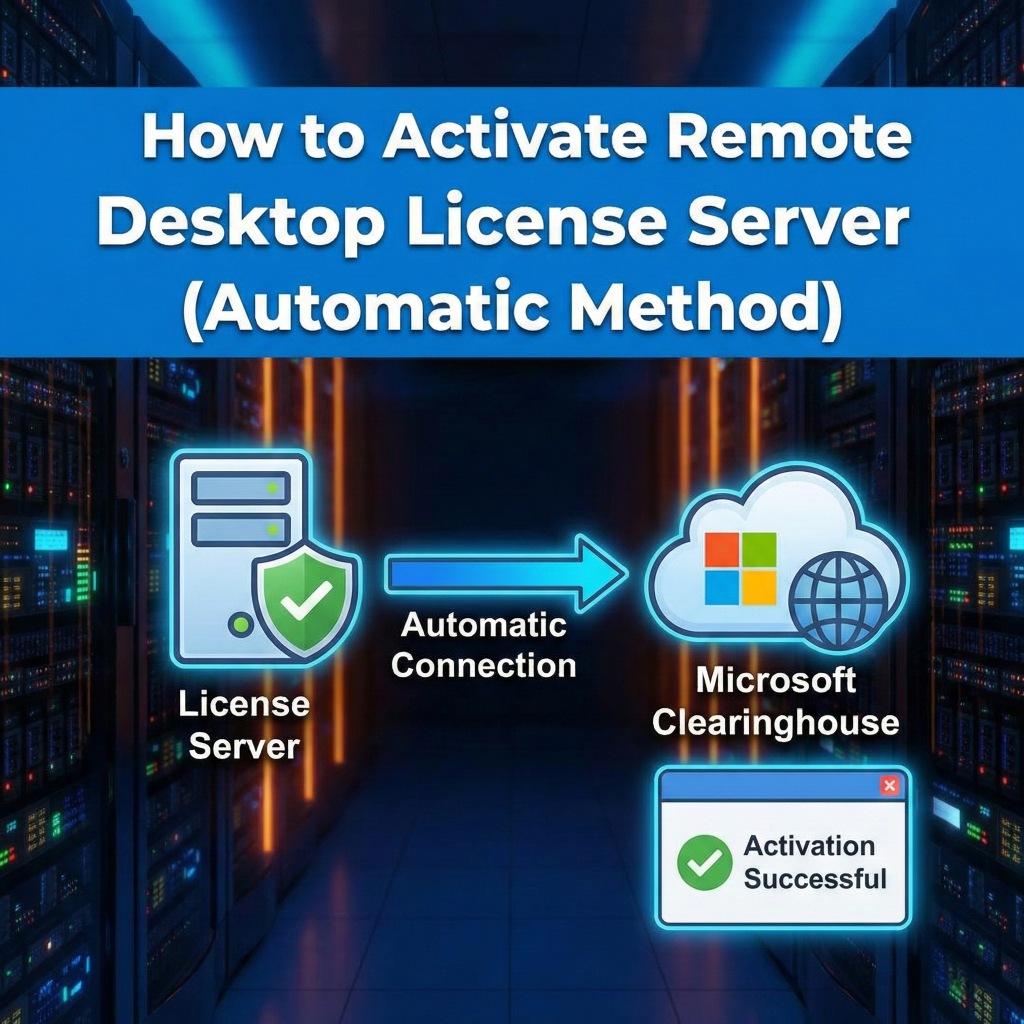
How to Activate Remote Desktop License Server (Automatic Method)
The first step to setting up your RDS licensing environment.
Before you can install any Client Access Licenses (CALs), your Windows Server must be "Activated" with Microsoft. This process validates the server and allows it to issue secure certificates to connecting devices.
⚠️ Prerequisite: The "Automatic Connection" method requires your server to have active internet access. If your server is offline, use the Web Browser Method instead.
Step 1: Open Licensing Manager
- Open Server Manager.
- Navigate to Tools > Remote Desktop Services > Remote Desktop Licensing Manager.
- Verify the status of your server. It should currently display a red "X" and say Not Activated.
Step 2: Select "Automatic Connection"
Ensure the server is configured to contact Microsoft directly.
- Right-click on your Server Name in the left-hand tree and select Properties.
- Click on the Connection Method tab.
- In the "Connection method" dropdown menu, select Automatic connection.
- Click OK.
Step 3: Start the Activation Wizard
- Right-click on your Server Name again.
- Select Activate Server.
- The Activate Server Wizard will appear. Click Next on the welcome screen.
Step 4: Enter Company Information
Microsoft requires this information to validate the server identity.
- Required Fields: Enter your First Name, Last Name, Company, and Country/Region.
(Note: Microsoft does not typically validate the specific text here, but the fields must be filled). - Click Next.
- Optional Fields: The next screen asks for Email and Address. You can leave these blank if you wish.
- Click Next.
Step 5: Complete Activation
The wizard will now communicate with the Microsoft Clearinghouse.
- After a few moments, you should see a message: "You have successfully activated the license server."
- Important: Check the box that says Start Install Licenses Wizard now if you are ready to add your CALs immediately.
- Click Finish.
Verification: In the Licensing Manager, your server should now show a Green Checkmark next to its name. You are now ready to install licenses.
Related Posts

How to Fix the CredSSP “Encryption Oracle Remediation” RDP Error
Home – How to Fix the CredSSP “Encryption Oracle Remediation” RDP Error How to Fix the CredSSP “Encryption Oracle Remediation” RDP Error If you are managing Windows Servers, you have likely encountered this terrifying error message when trying to connect via Remote Desktop: “An authentication error has occurred. The function requested is not supported… This…
How to Configure the RDS “Startup Environment” in Server 2016, 2019, 2022 & 2025
Home – How to Configure the RDS “Startup Environment” in Server 2016, 2019, 2022 & 2025 How to Configure the RDS “Startup Environment” in Server 2016, 2019, 2022 & 2025 If you recently upgraded your infrastructure, you likely noticed a glaring omission: Microsoft removed the Environment, Sessions, and Remote Control tabs from the Active Directory…
How to configure “Licensing Mode” and “License Server to Use” on a Windows Server?
Home / How to configure “Licensing Mode” and “License Server to Use” on a Windows Server? Configuring RDS Licensing Mode and License Server A guide for Windows Server 2016, 2019, 2022, and 2025. Configuring the Remote Desktop Services (RDS) licensing mode and license server on a Windows Server is a critical step for allowing more…
Everything you need to know about Microsoft RDS CALs
Home / Everything you need to know about Microsoft RDS CALs Everything you need to know about Microsoft RDS CALs A complete guide to Remote Desktop Services Client Access Licenses. What are Microsoft RDS CALs? RDS CALs (Remote Desktop Services Client Access Licenses) are a type of license required for a user or device to…