
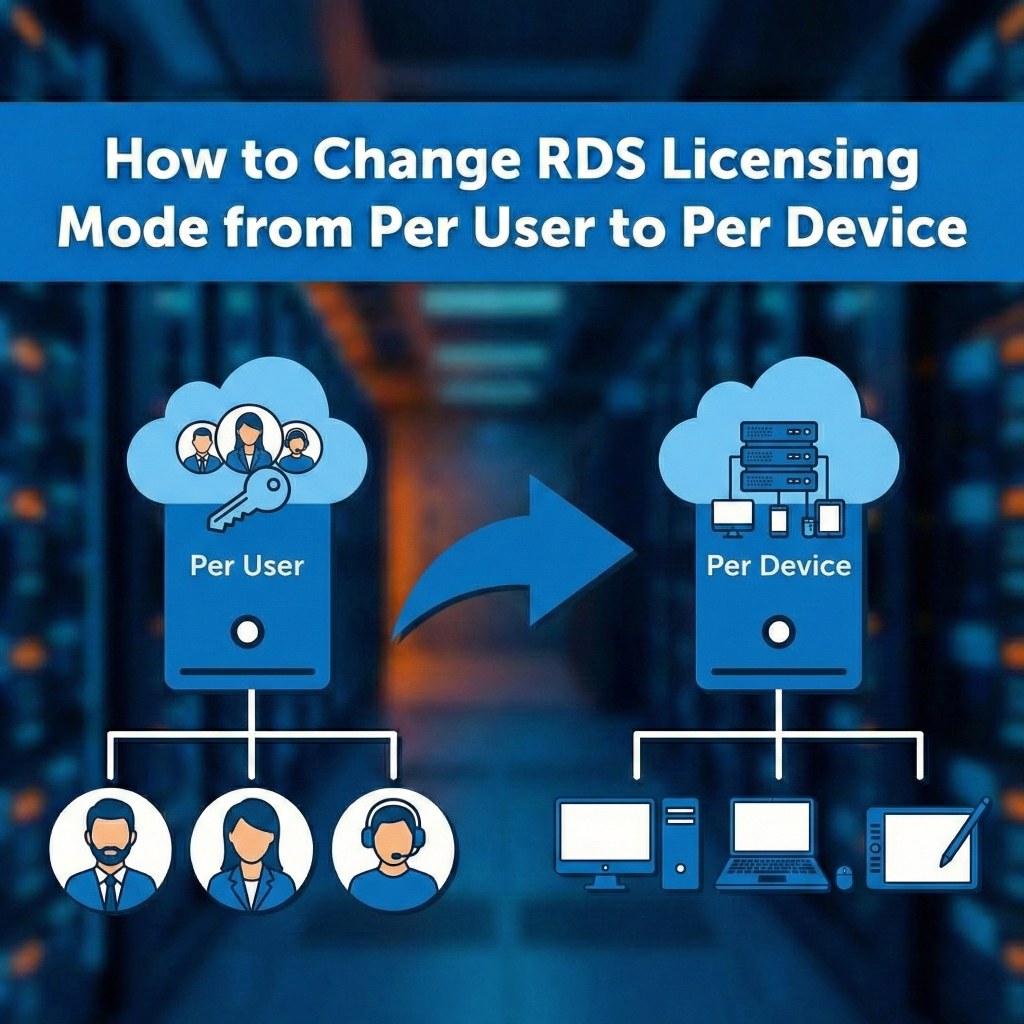
How to Change RDS Licensing Mode from Per User to Per Device
A guide to switching your Remote Desktop Services licensing configuration.
If your organization is transitioning from a user-based licensing model to a device-based one (ideal for shift workers or shared workstations), you must update the configuration on your Remote Desktop Session Host. This ensures the server issues licenses to the specific computer rather than the user account.
⚠️ Prerequisite: Before switching, ensure you have installed valid "Per Device" RDS CALs on your license server. Switching modes without the appropriate licenses installed will prevent devices from connecting once the grace period expires.
Method 1: Using Server Manager (GUI)
This is the standard method for deployments managed via the Remote Desktop Services role.
- Open Server Manager.
- In the left pane, click on Remote Desktop Services.
- Click on Overview.
- In the Deployment Overview section, click the Tasks dropdown menu and select Edit Deployment Properties.
- In the window that appears, click on the RD Licensing tab.
- Under Remote Desktop licensing mode, select Per Device.
- Click Apply and then OK.
Method 2: Using Group Policy
If your setting in Server Manager is greyed out, or if you manage multiple servers, Group Policy is the preferred method.
- Open the Local Group Policy Editor (
gpedit.msc) or Group Policy Management Console. - Navigate to the following path:
Computer Configuration > Administrative Templates > Windows Components > Remote Desktop Services > Remote Desktop Session Host > Licensing
- Double-click the policy: Set the Remote Desktop licensing mode.
- Select Enabled.
- In the dropdown menu under Options, change the mode to Per Device.
- Click OK.
- To apply the change immediately, run the following command in Command Prompt:
gpupdate /force
Method 3: Using PowerShell
You can quickly switch the mode using the RDS PowerShell module. Run PowerShell as an Administrator.
To switch to Per Device mode:
(Replace
Set-RDLicenseConfiguration -ConnectionBroker <ConnectionBrokerName> -Mode PerDevice
To verify the change:
Get-RDLicenseConfiguration -ConnectionBroker <ConnectionBrokerName>
Related Posts
How to configure “Licensing Mode” and “License Server to Use” on a Windows Server?
Configuring RDS Licensing Mode and License Server A guide for Windows Server 2016, 2019, 2022, and 2025. Configuring the Remote Desktop Services (RDS) licensing mode and license server on a Windows Server is a critical step for allowing more than two concurrent remote connections. The process can be done through Server Manager, Group Policy, or…
Everything you need to know about Microsoft RDS CALs
Everything you need to know about Microsoft RDS CALs A complete guide to Remote Desktop Services Client Access Licenses. What are Microsoft RDS CALs? RDS CALs (Remote Desktop Services Client Access Licenses) are a type of license required for a user or device to connect to a Windows Server running the Remote Desktop Session Host…
How to Remove or Delete all RDS CALs from a Windows Server?
How to Delete All RDS CALs from Windows Server A guide for resetting licensing on Windows Server 2016, 2019, and 2022. The process for deleting all Remote Desktop Services (RDS) CALs from a Windows Server can be done through a few different methods. The most reliable method is to rebuild the license database. ⚠️ Warning:…
How to revoke Per-Device RDS CALs on a Windows Server?
Revoking Per-Device RDS CALs Understanding the complexities of revoking Client Access Licenses in Windows Server. Revoking per-device Remote Desktop Services (RDS) Client Access Licenses (CALs) can be a complex and often misunderstood process in a Windows Server environment. The key takeaway is that direct revocation of a single per-device CAL is not always possible or…