
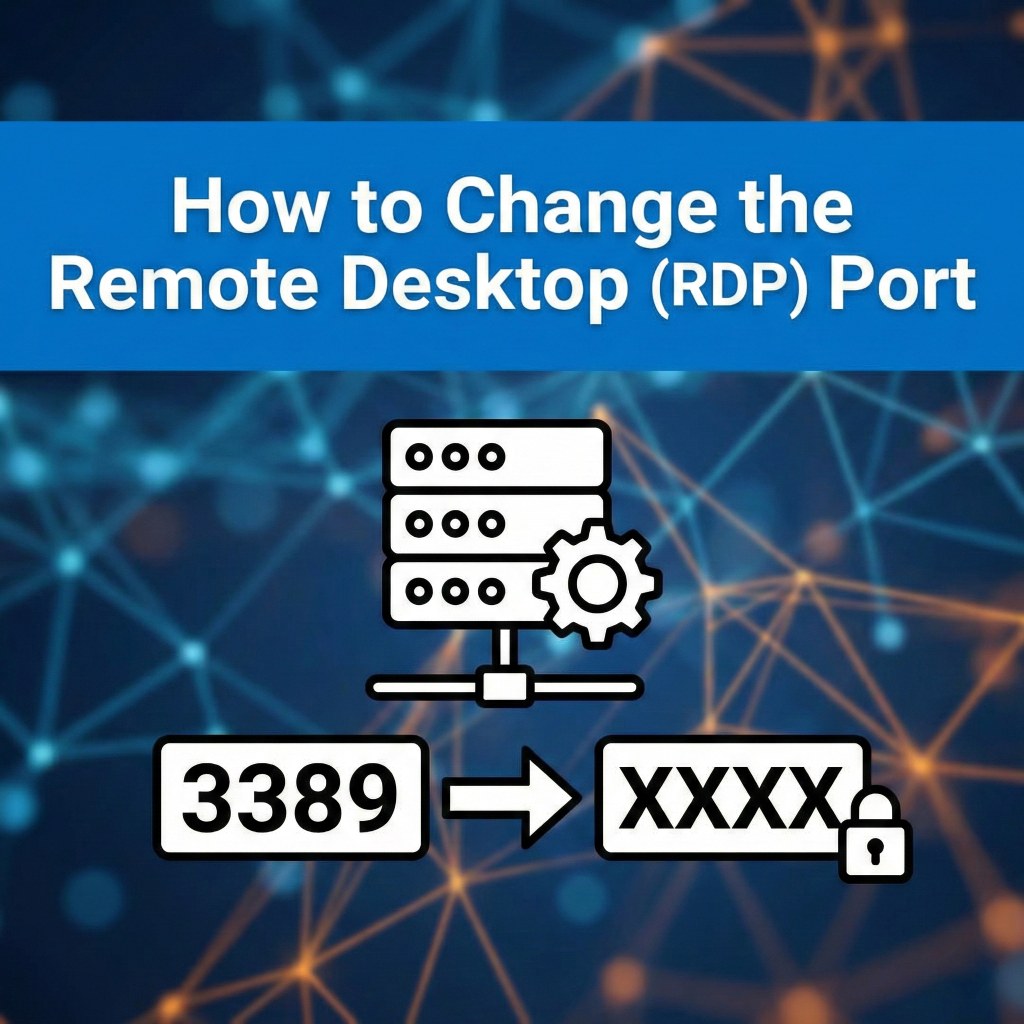
How to Change the Remote Desktop (RDP) Port
A guide to customizing the default RDP listening port on Windows Server.
By default, Remote Desktop listens on port 3389. Administrators often change this to enhance security ("security through obscurity") or to resolve port conflicts.
⚠️ CRITICAL WARNING:
Before you restart the service or the server, you MUST configure the Windows Firewall to allow traffic on the new port. Failure to do so will lock you out of the server remotely.
Method 1: The Manual Method (Registry + Firewall)
This method involves manually editing the Windows Registry and creating a new firewall rule.
Step 1: Modify the Registry
- Open the Registry Editor by pressing Win + R, typing
regedit, and pressing Enter. - Navigate to the following path:
HKEY_LOCAL_MACHINE\System\CurrentControlSet\Control\Terminal Server\WinStations\RDP-Tcp
- Locate the key named PortNumber in the right pane.
- Double-click it, select Decimal as the base, and type your new port number (e.g.,
3390). - Click OK.
Step 2: Update Windows Firewall
- Open Windows Defender Firewall with Advanced Security.
- Click on Inbound Rules > New Rule.
- Select Port and click Next.
- Select TCP and enter your specific local port (e.g.,
3390). - Select Allow the connection.
- Apply the rule to Domain, Private, and Public profiles (as needed).
- Name the rule (e.g., "RDP Custom Port 3390") and click Finish.
Step 3: Restart Service
Restart the server to apply changes. Alternatively, restart the Remote Desktop service:
Restart-Service TermService -Force
Method 2: Using PowerShell (Recommended)
This is the safest and fastest way, as it handles the registry and firewall in one go.
Run the following script as Administrator. (Replace 3390 with your desired port):
$port = 3390 # 1. Set the new port in Registry Set-ItemProperty -Path 'HKLM:\SYSTEM\CurrentControlSet\Control\Terminal Server\WinStations\RDP-Tcp' -Name "PortNumber" -Value $port # 2. Create the Firewall Rule New-NetFirewallRule -DisplayName "RDP Custom Port $port" -Direction Inbound -LocalPort $port -Protocol TCP -Action Allow # 3. Restart the Service Restart-Service TermService -Force
How to Connect with a Custom Port
Once changed, you must specify the port number when connecting via Remote Desktop Connection (mstsc.exe).
Syntax: ServerIP:PortNumber
Example: 192.168.1.10:3390
Related Posts
How to configure “Licensing Mode” and “License Server to Use” on a Windows Server?
Configuring RDS Licensing Mode and License Server A guide for Windows Server 2016, 2019, 2022, and 2025. Configuring the Remote Desktop Services (RDS) licensing mode and license server on a Windows Server is a critical step for allowing more than two concurrent remote connections. The process can be done through Server Manager, Group Policy, or…
Everything you need to know about Microsoft RDS CALs
Everything you need to know about Microsoft RDS CALs A complete guide to Remote Desktop Services Client Access Licenses. What are Microsoft RDS CALs? RDS CALs (Remote Desktop Services Client Access Licenses) are a type of license required for a user or device to connect to a Windows Server running the Remote Desktop Session Host…
How to Remove or Delete all RDS CALs from a Windows Server?
How to Delete All RDS CALs from Windows Server A guide for resetting licensing on Windows Server 2016, 2019, and 2022. The process for deleting all Remote Desktop Services (RDS) CALs from a Windows Server can be done through a few different methods. The most reliable method is to rebuild the license database. ⚠️ Warning:…
How to revoke Per-Device RDS CALs on a Windows Server?
Revoking Per-Device RDS CALs Understanding the complexities of revoking Client Access Licenses in Windows Server. Revoking per-device Remote Desktop Services (RDS) Client Access Licenses (CALs) can be a complex and often misunderstood process in a Windows Server environment. The key takeaway is that direct revocation of a single per-device CAL is not always possible or…