
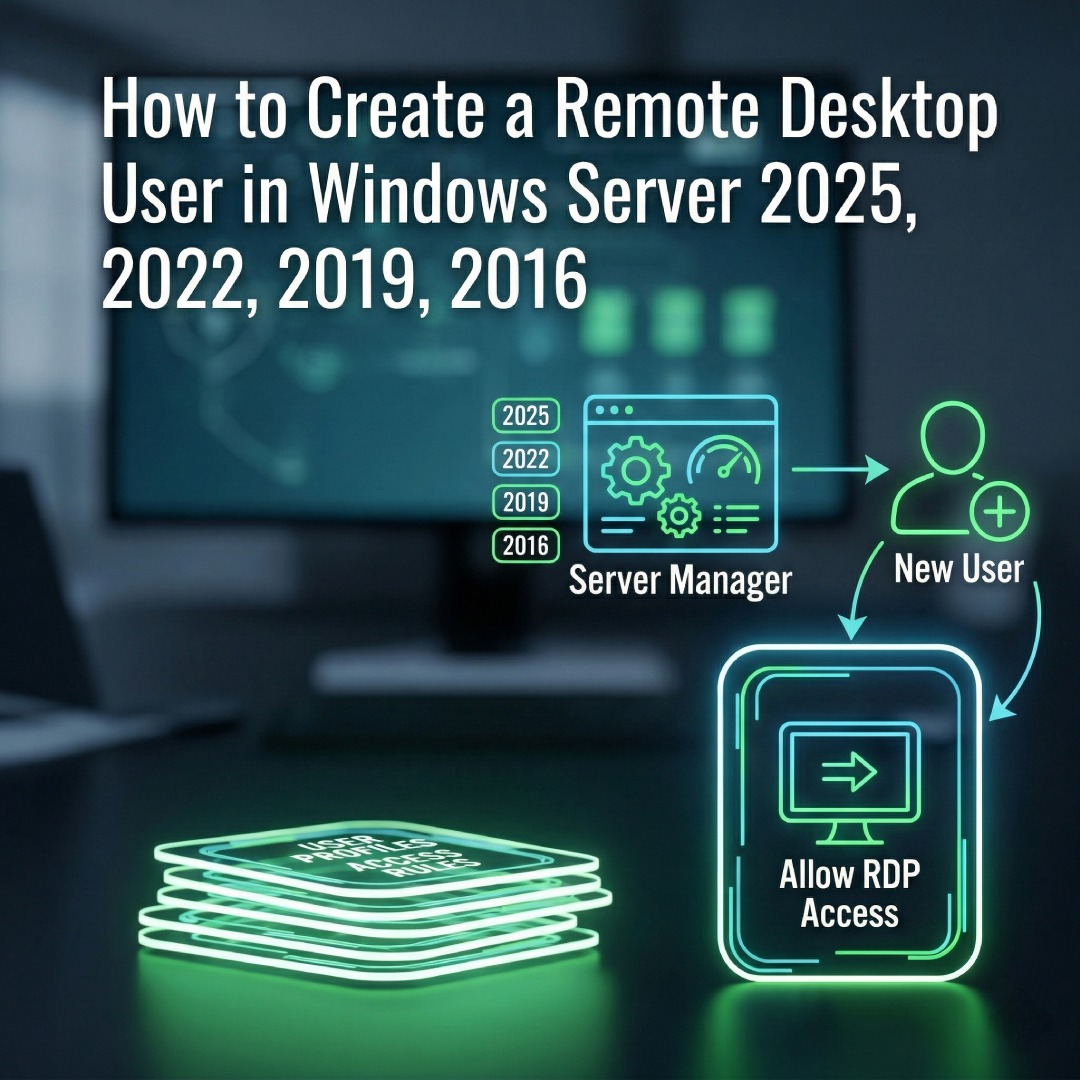
How to Create a Remote Desktop User in Windows Server (2016, 2019, 2022 & 2025)
Provisioning remote access for a new employee requires more than just creating a standard Windows account. To securely connect to a Session Host, the user must be explicitly granted remote desktop privileges. Because standard enterprise RDS deployments rely on Active Directory, this guide walks you through the universal AD provisioning process that applies across Windows Server 2016 to 2025.
Prerequisites Before You Begin
- You must have Domain Administrator or Account Operator privileges.
- Your RDS environment (Broker, Web Access, Session Host) must already be configured.
- You need access to a Domain Controller or a server with RSAT (Remote Server Administration Tools) installed.
-

Open Active Directory Users and Computers
Launch Server Manager. Click on Tools in the top right corner and select Active Directory Users and Computers (ADUC) from the dropdown list.

-
Create the New User Profile
In the ADUC console, navigate to your domain and locate the Users Organizational Unit (OU), or the specific OU where you manage your employees. Right-click the folder, select New, and click User.

-
Configure Credentials
Fill in the user's First Name, Last Name, and User logon name (e.g., [email protected]). Click Next. Assign a secure temporary password and check the box that forces the user to change the password at next logon. Click Finish.

-
Open the User's Properties
The user now exists in Active Directory, but they do not have permission to RDP into your servers yet. Right-click the newly created user account and select Properties.

-
Assign to the Remote Desktop Users Group
Navigate to the Member Of tab. Click the Add... button. In the object names box, type Remote Desktop Users and click Check Names. The group name will underline to confirm it is recognized. Click OK, then click Apply.

-
Verify Connection
The user is now fully provisioned in AD. They can open the Remote Desktop Connection app (mstsc.exe) on their local machine, enter your Session Host address, and log in using their new domain credentials.

Licensing Requirement: Creating the user account and adding them to the Remote Desktop Users group only grants them permission to connect. It does not provide the proper licensing required by the RD Licensing Manager.
Does Your New User Have a CAL?
To avoid "No Remote Desktop License Servers Available" errors and prevent your users from being locked out, every individual connecting to your server must be covered by a genuine RDS User CAL.
Author Bio

Microsoft Certified Professional
With over 20 years of experience deploying and managing enterprise Windows Server environments, Keloth leads technical implementation at RDS CAL Store. He specializes in Remote Desktop Services infrastructure, secure remote architecture, and helping IT teams seamlessly scale their official licensing.
Related Posts
Understanding RDS CAL Downgrade Rights
Home – Understanding RDS CAL Downgrade Rights Understanding RDS CAL Downgrade Rights When managing a Remote Desktop Services environment, hardware and software upgrades rarely happen all at once. You might purchase new Client Access Licenses (CALs) today, but still need them to authorize connections to older servers running in your datacenter. Microsoft accommodates this reality…

How to Disable Remote Desktop Easy Print in Windows Server (2016-2025)
Home – How to Disable Remote Desktop Easy Print in Windows Server (2016-2025) How to Disable Remote Desktop Easy Print in Windows Server (2016-2025) Remote Desktop Easy Print is the default driver Windows uses to map local client printers into a remote session. While convenient, it strips away advanced printer features (like stapling, tray selection,…

How to Fix the CredSSP “Encryption Oracle Remediation” RDP Error
Home – How to Fix the CredSSP “Encryption Oracle Remediation” RDP Error How to Fix the CredSSP “Encryption Oracle Remediation” RDP Error If you are managing Windows Servers, you have likely encountered this terrifying error message when trying to connect via Remote Desktop: “An authentication error has occurred. The function requested is not supported… This…

How to Configure the RDS “Startup Environment” in Server 2016, 2019, 2022 & 2025
Home – How to Configure the RDS “Startup Environment” in Server 2016, 2019, 2022 & 2025 How to Configure the RDS “Startup Environment” in Server 2016, 2019, 2022 & 2025 If you recently upgraded your infrastructure, you likely noticed a glaring omission: Microsoft removed the Environment, Sessions, and Remote Control tabs from the Active Directory…