
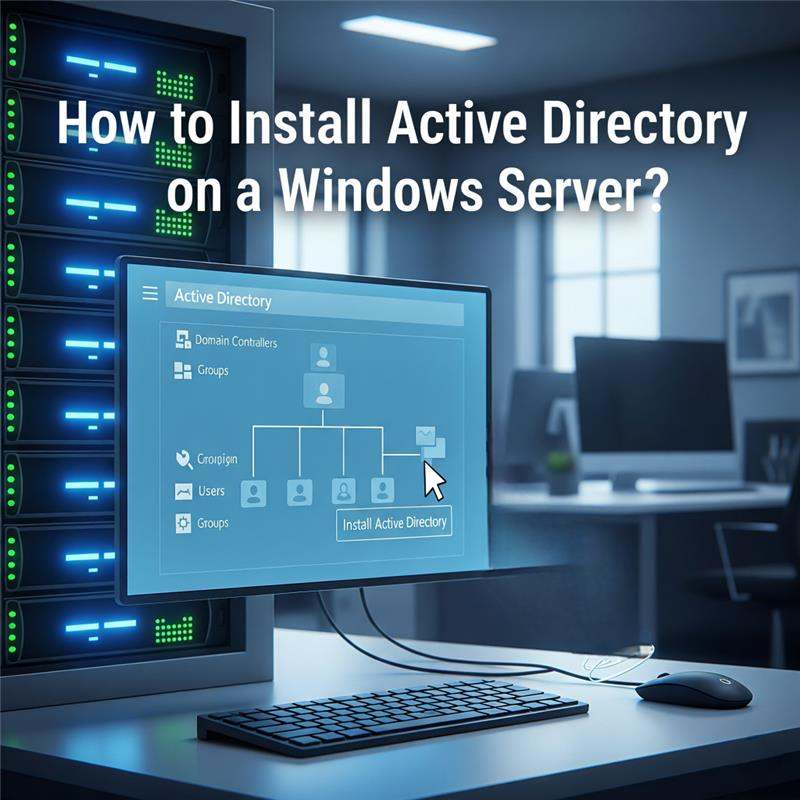
Setting up Active Directory Domain Services (AD DS)
A guide to installing the role and promoting your server to a Domain Controller.
Setting up Active Directory Domain Services (AD DS) on a Windows Server involves a two-part process: installing the role and then promoting the server to a domain controller. This can be done using either the Server Manager graphical user interface (GUI) or PowerShell.
Prerequisites
Before you begin, ensure your server meets these requirements:
Method 1: Using Server Manager (GUI)
This is the most common method and uses the visual interface.
1. Install the AD DS Role
- Open Server Manager and click on Add roles and features.
- Follow the wizard, selecting Role-based or feature-based installation.
- On the Server Roles page, check the box for Active Directory Domain Services. A new window will pop up; click Add Features to include the necessary management tools.
- Click Next through the remaining screens until you reach the Confirmation page, then click Install.
2. Promote the Server to a Domain Controller
- Once the installation completes, a yellow warning icon will appear at the top of Server Manager. Click it and select Promote this server to a domain controller.
- On the Deployment Configuration page, select Add a new forest and enter the desired Root domain name (e.g., yourcompany.com).
- On the next page, specify a Directory Services Restore Mode (DSRM) password. (This is a crucial password for disaster recovery).
- The wizard will automatically configure DNS and other settings. Review the options and proceed through the final steps.
- After the prerequisite checks pass, click Install. The server will automatically restart to complete the promotion.
Method 2: Using PowerShell
This method is faster and ideal for automation or scripting.
1. Install the AD DS Role
Open PowerShell as an administrator and run the following command:
Install-WindowsFeature -Name AD-Domain-Services -IncludeManagementTools
2. Promote the Server to a Domain Controller
After the role is installed, run the Install-ADDSForest cmdlet. Replace the placeholders with your specific information:
Install-ADDSForest -DomainName "yourcompany.com" -DomainNetbiosName "YOURCOMPANY"

-InstallDns:$true -LogPath "C:\Windows\NTDS" -SysvolPath "C:\Windows\SYSVOL" -

CreateDnsDelegation:$false
You will be prompted to enter and confirm the DSRM password. The server will reboot automatically upon completion.
Related Posts

How to Fix the CredSSP “Encryption Oracle Remediation” RDP Error
Home – How to Fix the CredSSP “Encryption Oracle Remediation” RDP Error How to Fix the CredSSP “Encryption Oracle Remediation” RDP Error If you are managing Windows Servers, you have likely encountered this terrifying error message when trying to connect via Remote Desktop: “An authentication error has occurred. The function requested is not supported… This…

How to Configure the RDS “Startup Environment” in Server 2016, 2019, 2022 & 2025
Home – How to Configure the RDS “Startup Environment” in Server 2016, 2019, 2022 & 2025 How to Configure the RDS “Startup Environment” in Server 2016, 2019, 2022 & 2025 If you recently upgraded your infrastructure, you likely noticed a glaring omission: Microsoft removed the Environment, Sessions, and Remote Control tabs from the Active Directory…

How to configure “Licensing Mode” and “License Server to Use” on a Windows Server?
Home / How to configure “Licensing Mode” and “License Server to Use” on a Windows Server? Configuring RDS Licensing Mode and License Server A guide for Windows Server 2016, 2019, 2022, and 2025. Configuring the Remote Desktop Services (RDS) licensing mode and license server on a Windows Server is a critical step for allowing more…
Everything you need to know about Microsoft RDS CALs
Home / Everything you need to know about Microsoft RDS CALs Everything you need to know about Microsoft RDS CALs A complete guide to Remote Desktop Services Client Access Licenses. What are Microsoft RDS CALs? RDS CALs (Remote Desktop Services Client Access Licenses) are a type of license required for a user or device to…