
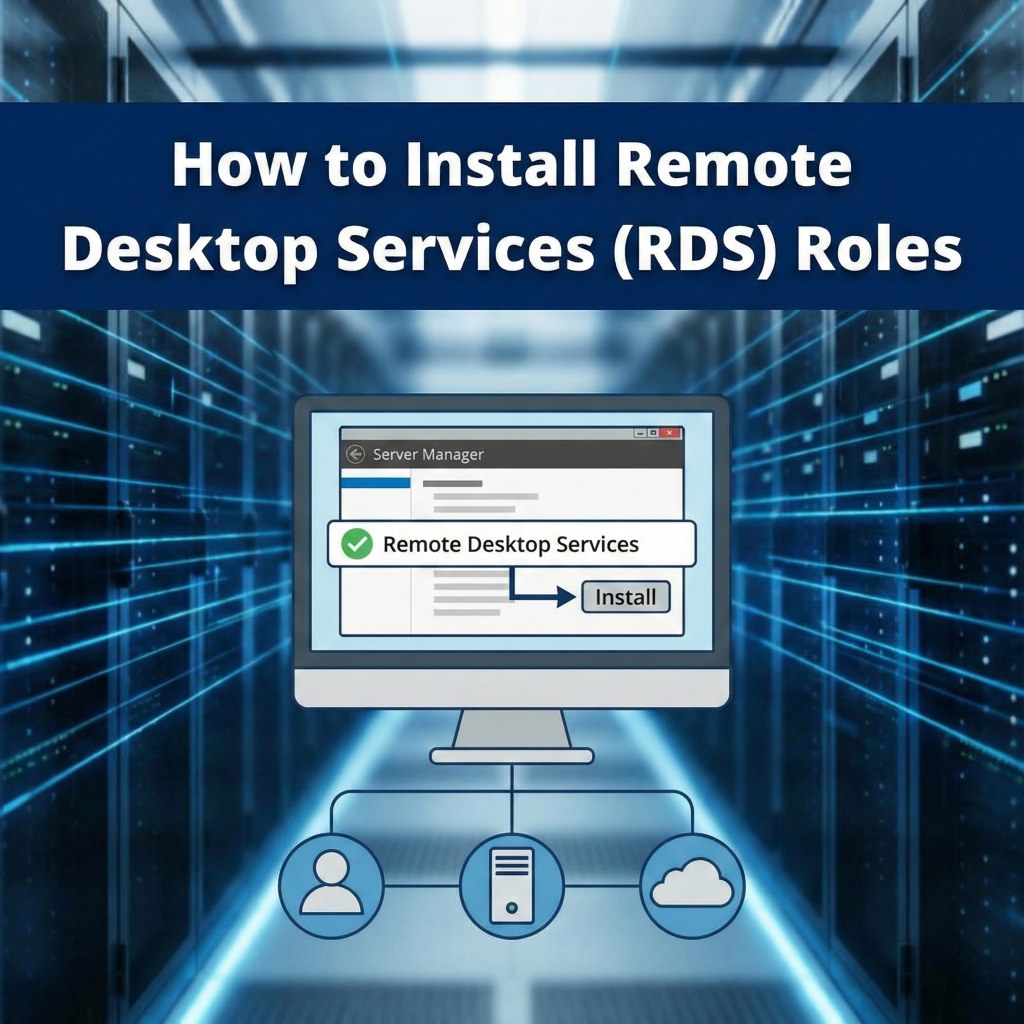
How to Install Remote Desktop Services (RDS) Roles
A guide to setting up the Session Host and Licensing roles on Windows Server.
To enable multiple users to connect to a Windows Server simultaneously, you must install the Remote Desktop Services roles. This process transforms the server from a standard administrator-only system into a full application server.
Prerequisites
Step 1: Start the Installation Wizard
- Open Server Manager.
- Click on Manage in the top-right corner and select Add Roles and Features.
- Click Next on the "Before you begin" screen.
- Select Role-based or feature-based installation and click Next.
- Select your server from the server pool and click Next.
Step 2: Select Server Roles
- Scroll down the list of roles and check the box for Remote Desktop Services.
- Click Next.
- You can skip the "Features" section by clicking Next again.
- Click Next on the "Remote Desktop Services" overview screen.
Step 3: Select Role Services
This is the most critical step where you define the server's function.
- Remote Desktop Session Host: Check this box. This is the core service that allows users to run desktop sessions.
(Click Add Features if prompted). - Remote Desktop Licensing: Check this box. This is required to issue and manage CALs.
(Click Add Features if prompted). - Click Next.
Step 4: Confirmation and Restart
⚠️ Warning: Installing the Session Host role requires a restart. Ensure you have saved all work and planned for downtime.
- On the Confirmation screen, check the box Restart the destination server automatically if required.
- Click Install.
The server will restart. Upon logging back in, Server Manager will automatically open and complete the installation.
Related Posts

How to configure “Licensing Mode” and “License Server to Use” on a Windows Server?
Configuring RDS Licensing Mode and License Server A guide for Windows Server 2016, 2019, 2022, and 2025. Configuring the Remote Desktop Services (RDS) licensing mode and license server on a Windows Server is a critical step for allowing more than two concurrent remote connections. The process can be done through Server Manager, Group Policy, or…
Everything you need to know about Microsoft RDS CALs
Everything you need to know about Microsoft RDS CALs A complete guide to Remote Desktop Services Client Access Licenses. What are Microsoft RDS CALs? RDS CALs (Remote Desktop Services Client Access Licenses) are a type of license required for a user or device to connect to a Windows Server running the Remote Desktop Session Host…
How to Remove or Delete all RDS CALs from a Windows Server?
How to Delete All RDS CALs from Windows Server A guide for resetting licensing on Windows Server 2016, 2019, and 2022. The process for deleting all Remote Desktop Services (RDS) CALs from a Windows Server can be done through a few different methods. The most reliable method is to rebuild the license database. ⚠️ Warning:…
How to revoke Per-Device RDS CALs on a Windows Server?
Revoking Per-Device RDS CALs Understanding the complexities of revoking Client Access Licenses in Windows Server. Revoking per-device Remote Desktop Services (RDS) Client Access Licenses (CALs) can be a complex and often misunderstood process in a Windows Server environment. The key takeaway is that direct revocation of a single per-device CAL is not always possible or…