
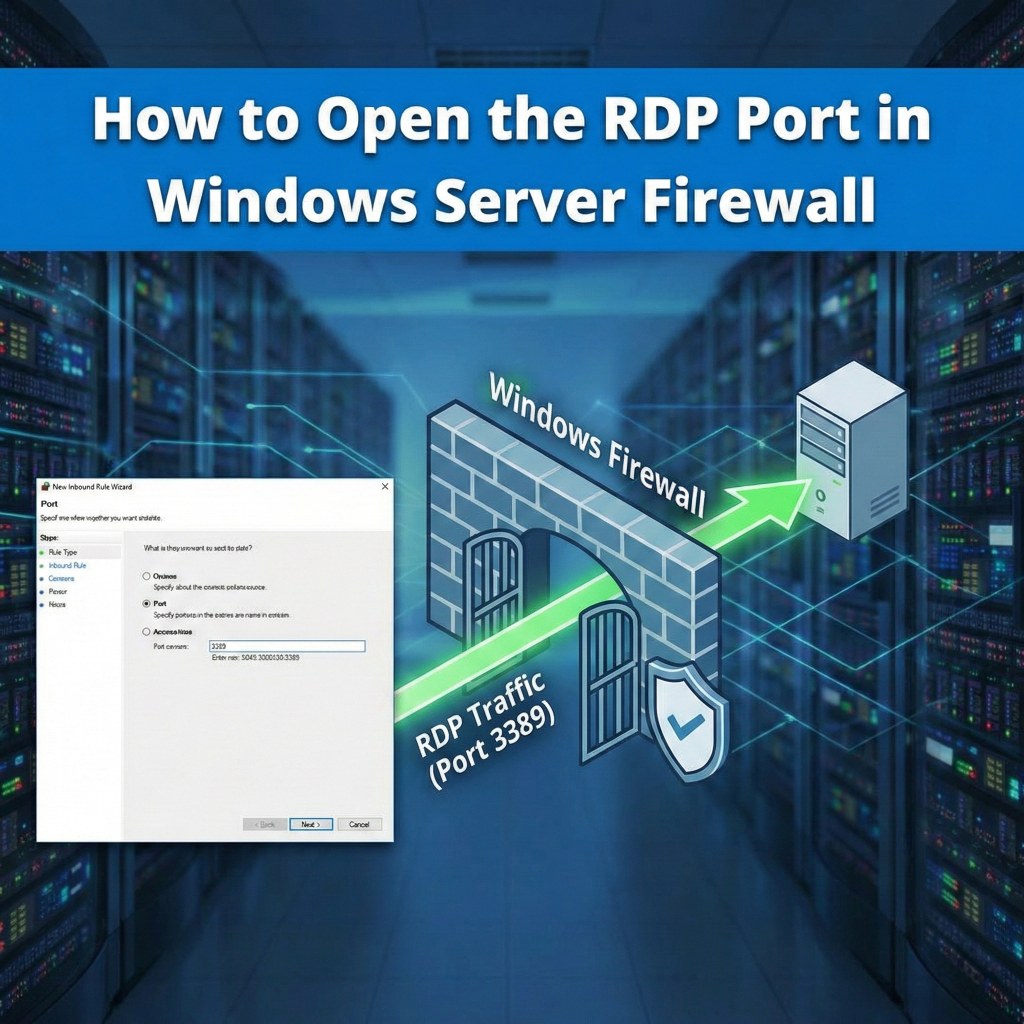
How to Open the RDP Port in Windows Server Firewall
Allowing Remote Desktop traffic through Windows Defender Firewall.
Even if Remote Desktop Services is enabled, you cannot connect if the Windows Firewall is blocking the traffic. You must create an Inbound Rule to allow TCP traffic on port 3389.
⚠️ Security Note: RDP uses port 3389 by default. Opening this port to the public internet is a security risk. Ensure you are using a VPN or restricting the rule to specific IP addresses whenever possible.
Method 1: Using Windows Firewall (GUI)
This is the standard method using the graphical interface.
- Open the Start Menu, search for Windows Defender Firewall with Advanced Security, and open it.
- In the left pane, click on Inbound Rules.
- In the right pane (Actions), click New Rule....
- Rule Type: Select Port and click Next.
- Protocol and Ports:
- Select TCP.
- Select Specific local ports and enter
3389. - Click Next.
- Action: Select Allow the connection and click Next.
- Profile: Check Domain, Private, and Public (uncheck Public if you want to restrict internet access) and click Next.
- Name: Enter a name (e.g., "Allow RDP") and click Finish.
Method 2: Using PowerShell (Fastest)
You can create the rule instantly using a single PowerShell command. Run PowerShell as Administrator.
To open the standard RDP port (3389):
New-NetFirewallRule -DisplayName "Allow RDP" -Direction Inbound -LocalPort 3389 -Protocol TCP -Action Allow
Method 3: Using Command Prompt
If you prefer the classic command line (netsh):
netsh advfirewall firewall add rule name="Allow RDP" dir=in action=allow protocol=TCP localport=3389
Related Posts

How to configure “Licensing Mode” and “License Server to Use” on a Windows Server?
Configuring RDS Licensing Mode and License Server A guide for Windows Server 2016, 2019, 2022, and 2025. Configuring the Remote Desktop Services (RDS) licensing mode and license server on a Windows Server is a critical step for allowing more than two concurrent remote connections. The process can be done through Server Manager, Group Policy, or…
Everything you need to know about Microsoft RDS CALs
Everything you need to know about Microsoft RDS CALs A complete guide to Remote Desktop Services Client Access Licenses. What are Microsoft RDS CALs? RDS CALs (Remote Desktop Services Client Access Licenses) are a type of license required for a user or device to connect to a Windows Server running the Remote Desktop Session Host…
How to Remove or Delete all RDS CALs from a Windows Server?
How to Delete All RDS CALs from Windows Server A guide for resetting licensing on Windows Server 2016, 2019, and 2022. The process for deleting all Remote Desktop Services (RDS) CALs from a Windows Server can be done through a few different methods. The most reliable method is to rebuild the license database. ⚠️ Warning:…
How to revoke Per-Device RDS CALs on a Windows Server?
Revoking Per-Device RDS CALs Understanding the complexities of revoking Client Access Licenses in Windows Server. Revoking per-device Remote Desktop Services (RDS) Client Access Licenses (CALs) can be a complex and often misunderstood process in a Windows Server environment. The key takeaway is that direct revocation of a single per-device CAL is not always possible or…