
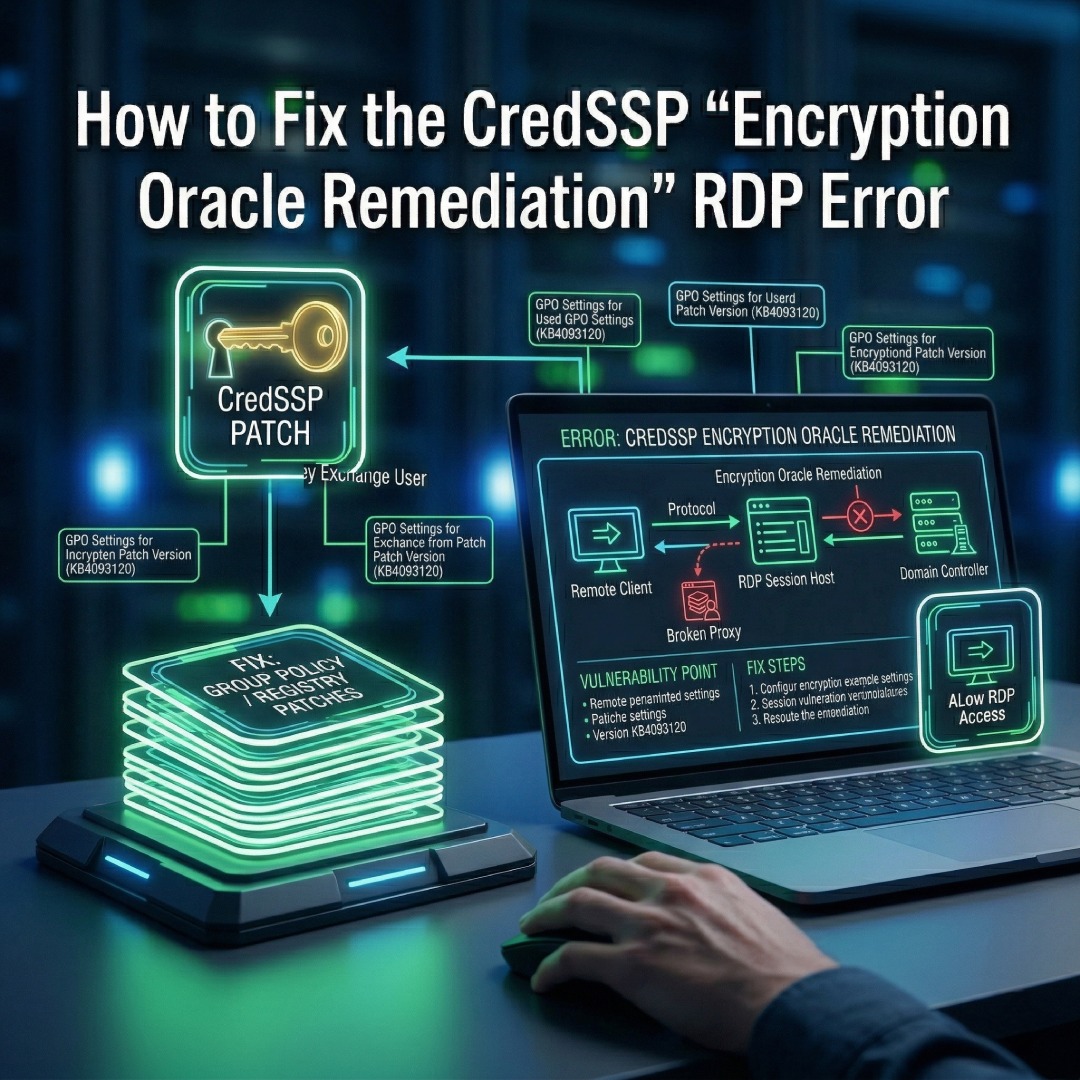
How to Fix the CredSSP "Encryption Oracle Remediation" RDP Error
If you are managing Windows Servers, you have likely encountered this terrifying error message when trying to connect via Remote Desktop: "An authentication error has occurred. The function requested is not supported... This could be due to CredSSP encryption oracle remediation."
Why does this happen? This is caused by a patch mismatch (specifically addressing vulnerability CVE-2018-0886). The error triggers when the client machine you are connecting from has the latest Microsoft security updates installed, but the target server you are connecting to does not. Windows blocks the connection because the server is attempting to use an insecure, outdated version of the CredSSP protocol.
The "Correct" Fix vs. The "Immediate Workaround"
The true, permanent fix for this error is to log into the target server (via console or hypervisor) and run Windows Updates so it supports the secure CredSSP protocol. However, if you need immediate RDP access to the server right now, you can apply the following client-side workaround to temporarily bypass the security block.
-

Open the Local Group Policy Editor
On the client machine (the computer you are sitting at, not the server), press the Windows Key + R, type gpedit.msc, and hit Enter to open the Local Group Policy Editor.

-
Navigate to the CredSSP Policies
In the left-hand pane, drill down through the following path:
Computer Configuration > Administrative Templates > System > Credentials Delegation.

-
Edit the Encryption Oracle Remediation Policy
In the right-hand pane, locate the policy named Encryption Oracle Remediation. Double-click it to open the configuration window.

-
Set Protection Level to Vulnerable
Change the radio button at the top to Enabled. In the "Options" section below, click the Protection Level dropdown menu and change it from "Mitigated" to Vulnerable. Click Apply and OK.

-
Reconnect to Your Server
You do not need to reboot your client machine. Open your Remote Desktop Connection app and attempt to connect to the server again. The connection will now succeed.

Alternative Method: The Registry Fix (Fastest Method)
If you do not have access to gpedit.msc (for example, on Windows 10/11 Home editions), you can apply the exact same workaround directly through the Windows Registry. Open Command Prompt as an Administrator and paste the following command to instantly create the required registry key:
Run this in an elevated Command Prompt:
REG ADD HKLM\Software\Microsoft\Windows\CurrentVersion\Policies\System\CredSSP\Parameters /v AllowEncryptionOracle /t REG_DWORD /d 2
Security Warning: Setting this value to "Vulnerable" exposes your RDP session to potential man-in-the-middle attacks. Once you have successfully connected to your server, you must run Windows Updates on the server immediately. After the server is patched, we highly recommend reverting your client machine's policy back to "Not Configured".
Is Your Server Properly Licensed?
Connection errors aren't just caused by patches—an expired 120-day grace period will lock your users out completely. Ensure your infrastructure is secure and properly authorized with authentic Microsoft RDS CALs. We offer instant delivery and free technical installation support.
Author Bio

Microsoft Certified Professional
With over 20 years of experience deploying and managing enterprise Windows Server environments, Keloth leads technical implementation at RDS CAL Store. He specializes in Remote Desktop Services infrastructure, secure remote architecture, and helping IT teams seamlessly scale their official licensing.
Related Posts

Understanding RDS CAL Downgrade Rights
Home – Understanding RDS CAL Downgrade Rights Understanding RDS CAL Downgrade Rights When managing a Remote Desktop Services environment, hardware and software upgrades rarely happen all at once. You might purchase new Client Access Licenses (CALs) today, but still need them to authorize connections to older servers running in your datacenter. Microsoft accommodates this reality…

How to Disable Remote Desktop Easy Print in Windows Server (2016-2025)
Home – How to Disable Remote Desktop Easy Print in Windows Server (2016-2025) How to Disable Remote Desktop Easy Print in Windows Server (2016-2025) Remote Desktop Easy Print is the default driver Windows uses to map local client printers into a remote session. While convenient, it strips away advanced printer features (like stapling, tray selection,…

How to Create a Remote Desktop User in Windows Server (2016, 2019, 2022 & 2025)
Home – How to Create a Remote Desktop User in Windows Server (2016, 2019, 2022 & 2025) How to Create a Remote Desktop User in Windows Server (2016, 2019, 2022 & 2025) Provisioning remote access for a new employee requires more than just creating a standard Windows account. To securely connect to a Session Host,…

How to Configure the RDS “Startup Environment” in Server 2016, 2019, 2022 & 2025
Home – How to Configure the RDS “Startup Environment” in Server 2016, 2019, 2022 & 2025 How to Configure the RDS “Startup Environment” in Server 2016, 2019, 2022 & 2025 If you recently upgraded your infrastructure, you likely noticed a glaring omission: Microsoft removed the Environment, Sessions, and Remote Control tabs from the Active Directory…