
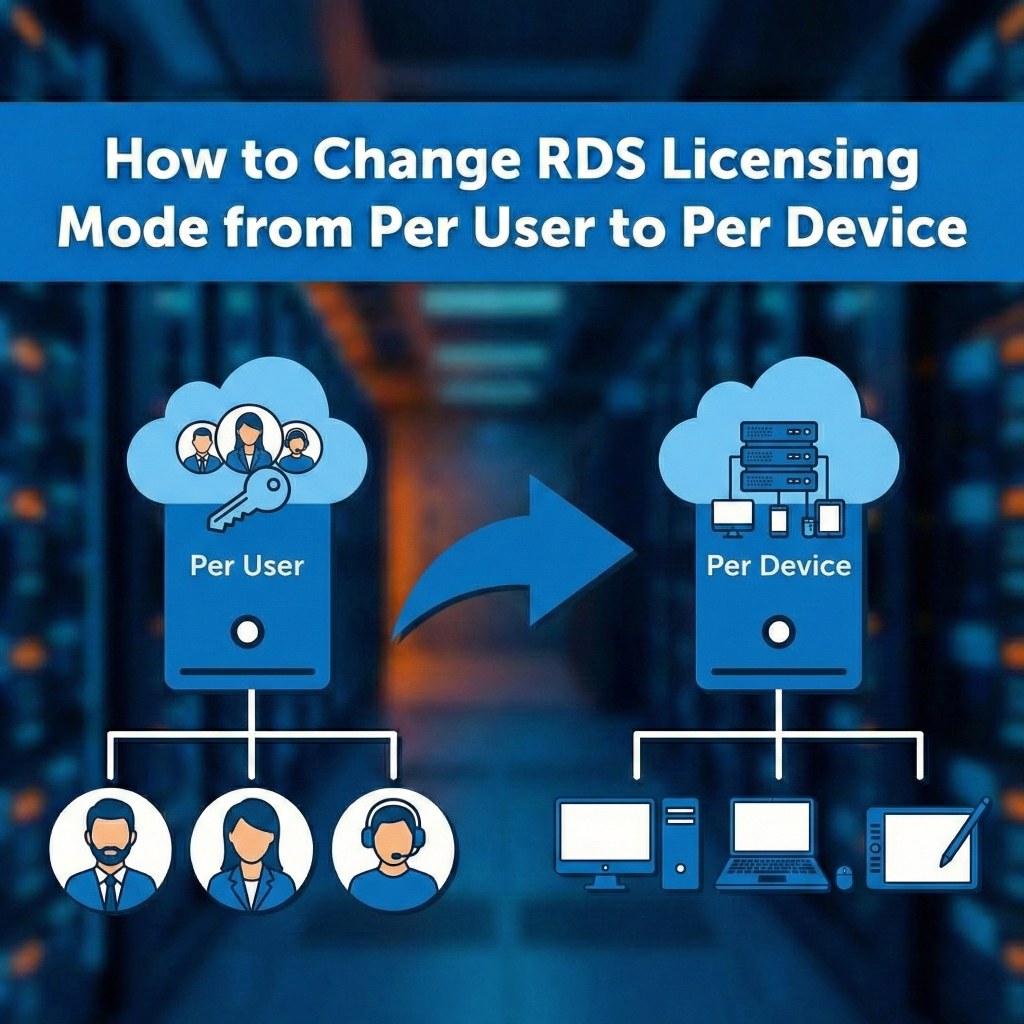
How to Change RDS Licensing Mode from Per User to Per Device
A guide to switching your Remote Desktop Services licensing configuration.
If your organization is transitioning from a user-based licensing model to a device-based one (ideal for shift workers or shared workstations), you must update the configuration on your Remote Desktop Session Host. This ensures the server issues licenses to the specific computer rather than the user account.
⚠️ Prerequisite: Before switching, ensure you have installed valid "Per Device" RDS CALs on your license server. Switching modes without the appropriate licenses installed will prevent devices from connecting once the grace period expires.
Method 1: Using Server Manager (GUI)
This is the standard method for deployments managed via the Remote Desktop Services role.
- Open Server Manager.
- In the left pane, click on Remote Desktop Services.
- Click on Overview.
- In the Deployment Overview section, click the Tasks dropdown menu and select Edit Deployment Properties.
- In the window that appears, click on the RD Licensing tab.
- Under Remote Desktop licensing mode, select Per Device.
- Click Apply and then OK.
Method 2: Using Group Policy
If your setting in Server Manager is greyed out, or if you manage multiple servers, Group Policy is the preferred method.
- Open the Local Group Policy Editor (
gpedit.msc) or Group Policy Management Console. - Navigate to the following path:
Computer Configuration > Administrative Templates > Windows Components > Remote Desktop Services > Remote Desktop Session Host > Licensing
- Double-click the policy: Set the Remote Desktop licensing mode.
- Select Enabled.
- In the dropdown menu under Options, change the mode to Per Device.
- Click OK.
- To apply the change immediately, run the following command in Command Prompt:
gpupdate /force
Method 3: Using PowerShell
You can quickly switch the mode using the RDS PowerShell module. Run PowerShell as an Administrator.
To switch to Per Device mode:
(Replace
Set-RDLicenseConfiguration -ConnectionBroker <ConnectionBrokerName> -Mode PerDevice
To verify the change:
Get-RDLicenseConfiguration -ConnectionBroker <ConnectionBrokerName>
Author Bio

Microsoft Certified Professional
With over 20 years of experience deploying and managing enterprise Windows Server environments, Keloth leads technical implementation at RDS CAL Store. He specializes in Remote Desktop Services infrastructure, secure remote architecture, and helping IT teams seamlessly scale their official licensing.
Related Posts
Understanding RDS CAL Downgrade Rights
Home – Understanding RDS CAL Downgrade Rights Understanding RDS CAL Downgrade Rights When managing a Remote Desktop Services environment, hardware and software upgrades rarely happen all at once. You might purchase new Client Access Licenses (CALs) today, but still need them to authorize connections to older servers running in your datacenter. Microsoft accommodates this reality…

How to Disable Remote Desktop Easy Print in Windows Server (2016-2025)
Home – How to Disable Remote Desktop Easy Print in Windows Server (2016-2025) How to Disable Remote Desktop Easy Print in Windows Server (2016-2025) Remote Desktop Easy Print is the default driver Windows uses to map local client printers into a remote session. While convenient, it strips away advanced printer features (like stapling, tray selection,…
How to Create a Remote Desktop User in Windows Server (2016, 2019, 2022 & 2025)
Home – How to Create a Remote Desktop User in Windows Server (2016, 2019, 2022 & 2025) How to Create a Remote Desktop User in Windows Server (2016, 2019, 2022 & 2025) Provisioning remote access for a new employee requires more than just creating a standard Windows account. To securely connect to a Session Host,…

How to Fix the CredSSP “Encryption Oracle Remediation” RDP Error
Home – How to Fix the CredSSP “Encryption Oracle Remediation” RDP Error How to Fix the CredSSP “Encryption Oracle Remediation” RDP Error If you are managing Windows Servers, you have likely encountered this terrifying error message when trying to connect via Remote Desktop: “An authentication error has occurred. The function requested is not supported… This…