
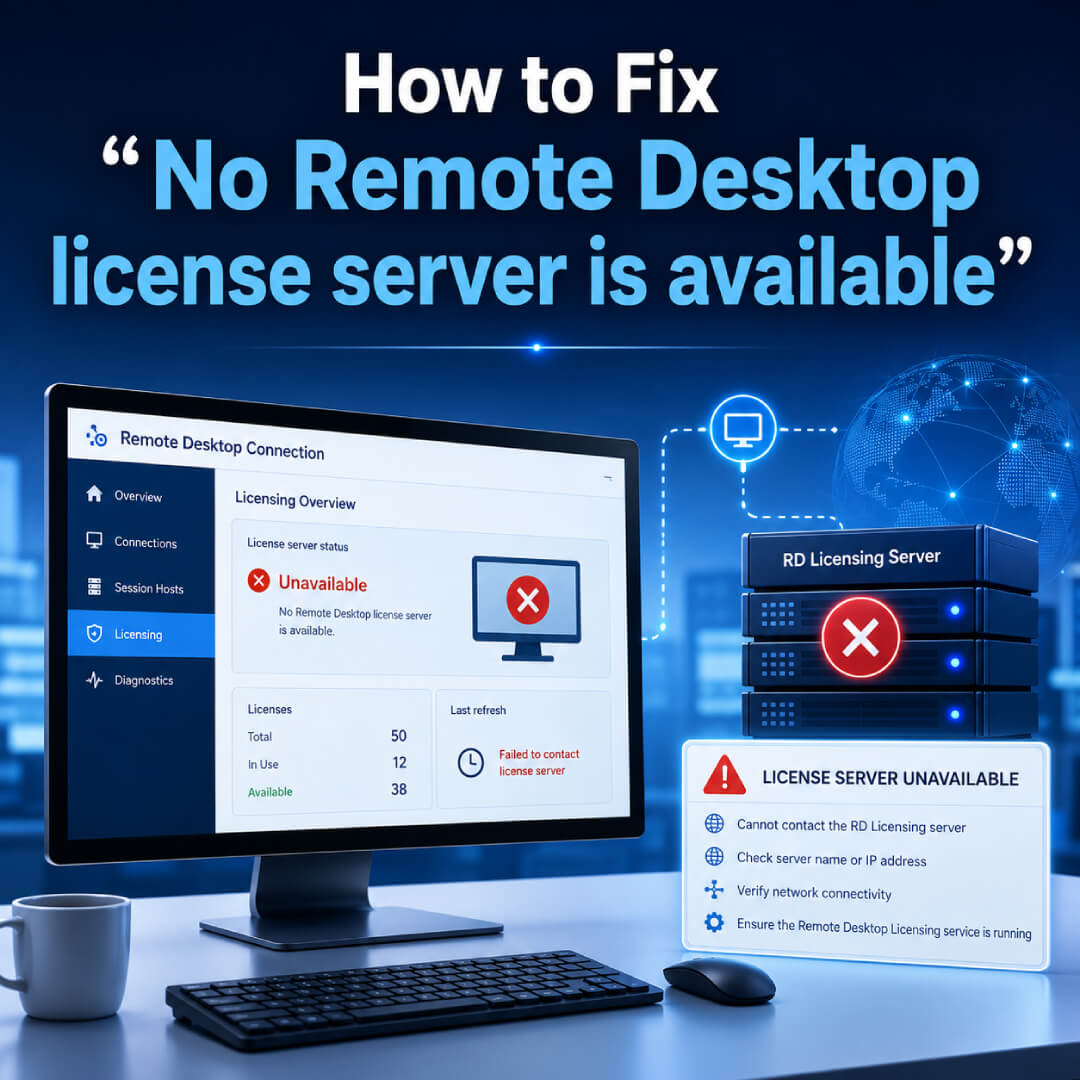
How to Fix the "No Remote Desktop license server is available" Error
t is one of the most common—and frustrating—errors an IT administrator will face: "The remote session was disconnected because there are no Remote Desktop License Servers available to provide a license."
This error typically occurs the moment the initial 120-day RDS grace period expires. Even if you have a License Server configured and activated, your RD Session Host must be explicitly told where to look for it. By default, Windows Server does not auto-discover the licensing server after the grace period ends. Here is exactly how to configure your environment to restore uninterrupted access.
Before You Begin
- You must have Domain Administrator or Local Administrator privileges.
- The Remote Desktop Licensing role must be installed and activated on your network.
- You must have sufficient, authentic RDS CALs installed on that Licensing Server.
-

Navigate to the Licensing Policies
In the left-hand pane, drill down through the following exact path:
Computer Configuration > Administrative Templates > Windows Components > Remote Desktop Services > Remote Desktop Session Host > Licensing.

-
Navigate to the CredSSP Policies
In the left-hand pane, drill down through the following path:
Computer Configuration > Administrative Templates > System > Credentials Delegation.

-
Specify the License Server
In the right-hand pane, double-click on Use the specified Remote Desktop license servers. Change the radio button to Enabled. In the "License servers to use" text box, enter the IP address or Fully Qualified Domain Name (FQDN) of your RD Licensing Server. Click Apply and OK.

-
Set the Licensing Mode
Change the radio button at the top to Enabled. In the "Options" section below, click the Protection Level dropdown menu and change it from "Mitigated" to Vulnerable. Click Apply and OK.

-
Force the Group Policy Update
You do not need to reboot your client machine. Open your Remote Desktop Connection app and attempt to connect to the server again. The connection will now succeed.

-
Verify via the RD Licensing Diagnoser
Open Server Manager, click Tools > Remote Desktop Services > RD Licensing Diagnoser. You should now see your License Server listed with a green checkmark, indicating that the Session Host successfully found the server and recognizes the installed CALs.

Alternative Method: The Registry Fix
If Group Policy is not applying correctly across your domain, or if you are running a workgroup environment without a Domain Controller, you can explicitly point the Session Host to the License Server using the Windows Registry. Open Command Prompt as an Administrator and run the following command (replace YOUR-SERVER-IP with your actual License Server IP):
Force the License Server via Registry:
REG ADD "HKLM\SYSTEM\CurrentControlSet\services\TermService\Parameters\LicenseServers" /v SpecifiedLicenseServers /t REG_MULTI_SZ /d YOUR-SERVER-IP /f
Admin Note: The "No license server available" error almost always triggers exactly 120 days after a new server is deployed. If you have applied the GPO fix above and users are still receiving errors, your server may have simply run out of available authorization licenses.
Are You Missing RDS CALs?
If your grace period has expired and you haven't yet deployed permanent licenses, your users will remain locked out. Ensure your remote desktop infrastructure is fully authorized and restore seamless access for your workforce today.
Author Bio

Microsoft Certified Professional
With over 20 years of experience deploying and managing enterprise Windows Server environments, Keloth leads technical implementation at RDS CAL Store. He specializes in Remote Desktop Services infrastructure, secure remote architecture, and helping IT teams seamlessly scale their official licensing.
Related Posts
Understanding RDS CAL Downgrade Rights
Home – Understanding RDS CAL Downgrade Rights Understanding RDS CAL Downgrade Rights When managing a Remote Desktop Services environment, hardware and software upgrades rarely happen all at once. You might purchase new Client Access Licenses (CALs) today, but still need them to authorize connections to older servers running in your datacenter. Microsoft accommodates this reality…

How to Disable Remote Desktop Easy Print in Windows Server (2016-2025)
Home – How to Disable Remote Desktop Easy Print in Windows Server (2016-2025) How to Disable Remote Desktop Easy Print in Windows Server (2016-2025) Remote Desktop Easy Print is the default driver Windows uses to map local client printers into a remote session. While convenient, it strips away advanced printer features (like stapling, tray selection,…

How to Create a Remote Desktop User in Windows Server (2016, 2019, 2022 & 2025)
Home – How to Create a Remote Desktop User in Windows Server (2016, 2019, 2022 & 2025) How to Create a Remote Desktop User in Windows Server (2016, 2019, 2022 & 2025) Provisioning remote access for a new employee requires more than just creating a standard Windows account. To securely connect to a Session Host,…

How to Fix the CredSSP “Encryption Oracle Remediation” RDP Error
Home – How to Fix the CredSSP “Encryption Oracle Remediation” RDP Error How to Fix the CredSSP “Encryption Oracle Remediation” RDP Error If you are managing Windows Servers, you have likely encountered this terrifying error message when trying to connect via Remote Desktop: “An authentication error has occurred. The function requested is not supported… This…