
How to Install RDS CALs via Automatic Connection
The fastest way to install licenses on an online server.
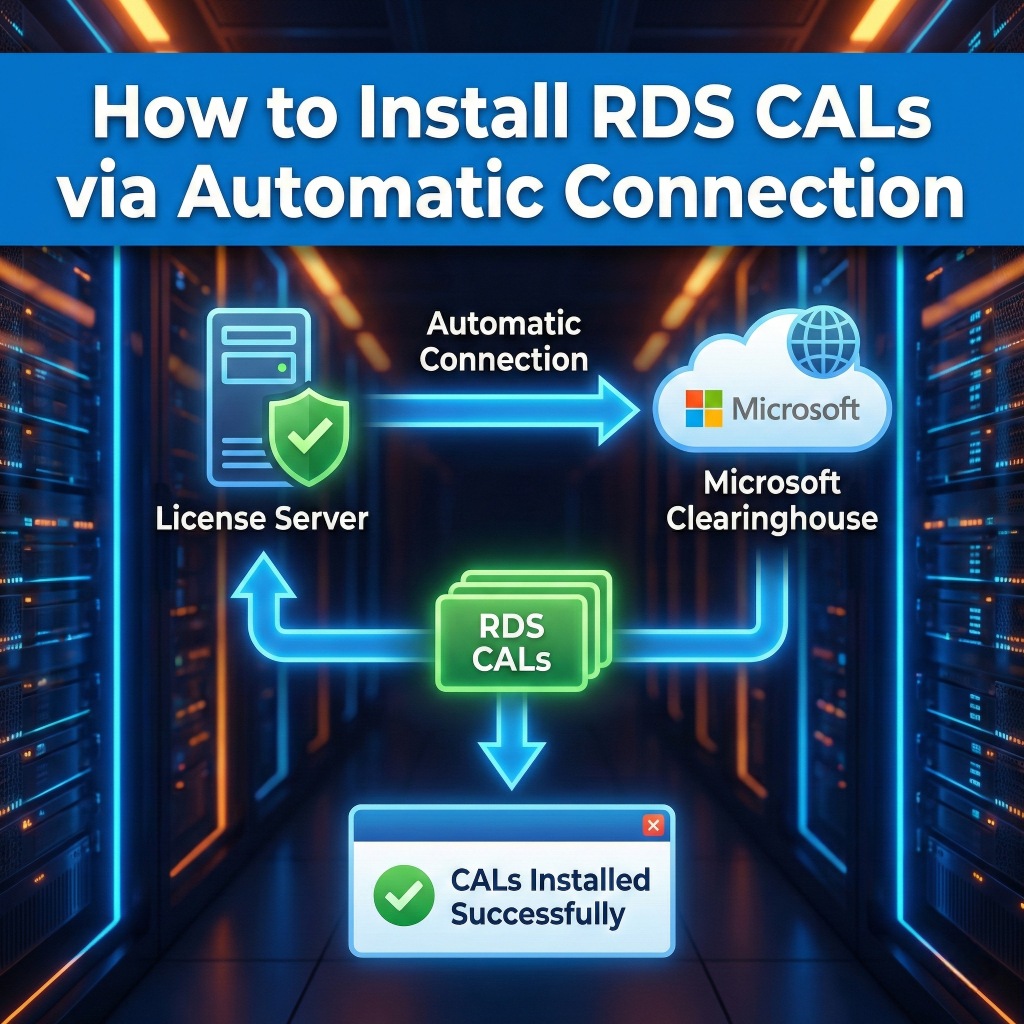
If your Windows Server is connected to the internet, the "Automatic Connection" method allows the server to contact the Microsoft Clearinghouse directly to validate and install your keys instantly.
⚠️ Prerequisite: Ensure your License Server is already Activated. You can verify this in the Licensing Manager—if the server status is "Not Activated," right-click it and select "Activate Server" first.
Step 1: Select "Automatic Connection"
Before installing licenses, you must ensure the server is configured to talk to Microsoft automatically.
- Open Server Manager.
- Navigate to Tools > Remote Desktop Services > Remote Desktop Licensing Manager.
- Right-click on your Server Name in the left-hand tree and select Properties.
- Click on the Connection Method tab.
- In the "Connection method" dropdown menu, select Automatic connection.
- Click OK.
Step 2: Launch the Installation Wizard
- Right-click on your server name again.
- Select Install Licenses.
- The Install Licenses Wizard will appear. Click Next.
Step 3: Select License Program
You must choose the correct license type based on what you purchased. This is the most common source of errors.
- For Retail Keys (Most Common):
Select Retail Purchase from the dropdown menu. This is for standard 25-character product keys. - For Other Agreement:
Select Other Agreement. You will need your Agreement Number. - Click Next.
Step 4: Enter Your Key
- If Retail: Enter your 25-digit product key (e.g., XXXXX-XXXXX-XXXXX-XXXXX-XXXXX) into the box and click Add.
- If Other Agreement: Enter your Agreement Number into the respective fields.
- Click Next.
Step 5: Finish and Verify
The wizard will contact Microsoft servers to validate the key.
- Once validated, the wizard will display "The licenses have been successfully installed."
- Click Finish.
- In the Licensing Manager, refresh the view (F5). You should now see your new license pack listed (e.g., "Windows Server 2022 - Installed RDS Per User CAL").
⚠️ Important Next Step:
Installing the CALs is not enough. You must configure the server to use them.
Click here for a guide on How to configure “Licensing Mode” and “License Server to Use”
Author Bio

Microsoft Certified Professional
With over 20 years of experience deploying and managing enterprise Windows Server environments, Keloth leads technical implementation at RDS CAL Store. He specializes in Remote Desktop Services infrastructure, secure remote architecture, and helping IT teams seamlessly scale their official licensing.
Related Posts
Understanding RDS CAL Downgrade Rights
Home – Understanding RDS CAL Downgrade Rights Understanding RDS CAL Downgrade Rights When managing a Remote Desktop Services environment, hardware and software upgrades rarely happen all at once. You might purchase new Client Access Licenses (CALs) today, but still need them to authorize connections to older servers running in your datacenter. Microsoft accommodates this reality…

How to Disable Remote Desktop Easy Print in Windows Server (2016-2025)
Home – How to Disable Remote Desktop Easy Print in Windows Server (2016-2025) How to Disable Remote Desktop Easy Print in Windows Server (2016-2025) Remote Desktop Easy Print is the default driver Windows uses to map local client printers into a remote session. While convenient, it strips away advanced printer features (like stapling, tray selection,…

How to Create a Remote Desktop User in Windows Server (2016, 2019, 2022 & 2025)
Home – How to Create a Remote Desktop User in Windows Server (2016, 2019, 2022 & 2025) How to Create a Remote Desktop User in Windows Server (2016, 2019, 2022 & 2025) Provisioning remote access for a new employee requires more than just creating a standard Windows account. To securely connect to a Session Host,…

How to Fix the CredSSP “Encryption Oracle Remediation” RDP Error
Home – How to Fix the CredSSP “Encryption Oracle Remediation” RDP Error How to Fix the CredSSP “Encryption Oracle Remediation” RDP Error If you are managing Windows Servers, you have likely encountered this terrifying error message when trying to connect via Remote Desktop: “An authentication error has occurred. The function requested is not supported… This…