
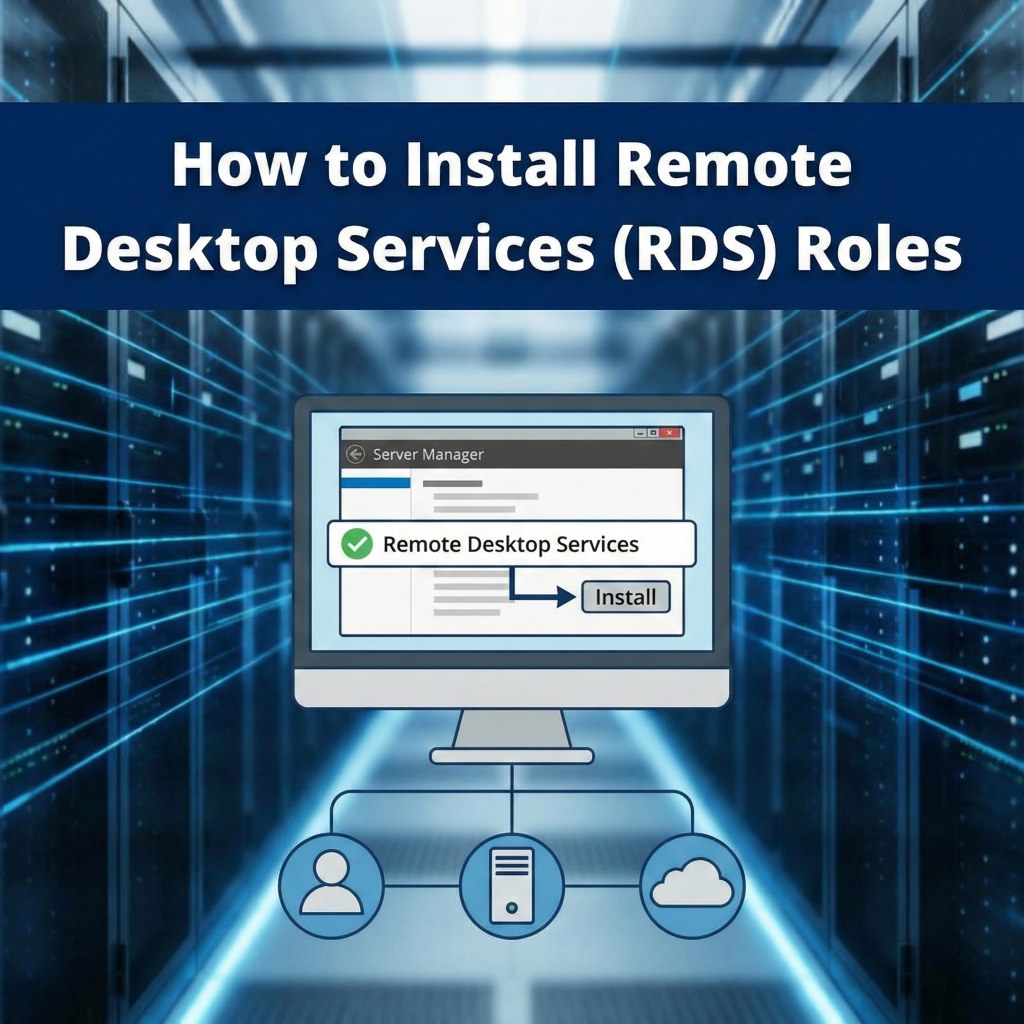
How to Install Remote Desktop Services (RDS) Roles
A guide to setting up the Session Host and Licensing roles on Windows Server.
To enable multiple users to connect to a Windows Server simultaneously, you must install the Remote Desktop Services roles. This process transforms the server from a standard administrator-only system into a full application server.
Prerequisites
Step 1: Start the Installation Wizard
- Open Server Manager.
- Click on Manage in the top-right corner and select Add Roles and Features.
- Click Next on the "Before you begin" screen.
- Select Role-based or feature-based installation and click Next.
- Select your server from the server pool and click Next.
Step 2: Select Server Roles
- Scroll down the list of roles and check the box for Remote Desktop Services.
- Click Next.
- You can skip the "Features" section by clicking Next again.
- Click Next on the "Remote Desktop Services" overview screen.
Step 3: Select Role Services
This is the most critical step where you define the server's function.
- Remote Desktop Session Host: Check this box. This is the core service that allows users to run desktop sessions.
(Click Add Features if prompted). - Remote Desktop Licensing: Check this box. This is required to issue and manage CALs.
(Click Add Features if prompted). - Click Next.
Step 4: Confirmation and Restart
⚠️ Warning: Installing the Session Host role requires a restart. Ensure you have saved all work and planned for downtime.
- On the Confirmation screen, check the box Restart the destination server automatically if required.
- Click Install.
The server will restart. Upon logging back in, Server Manager will automatically open and complete the installation.
Author Bio

Microsoft Certified Professional
With over 20 years of experience deploying and managing enterprise Windows Server environments, Keloth leads technical implementation at RDS CAL Store. He specializes in Remote Desktop Services infrastructure, secure remote architecture, and helping IT teams seamlessly scale their official licensing.
Related Posts
Understanding RDS CAL Downgrade Rights
Home – Understanding RDS CAL Downgrade Rights Understanding RDS CAL Downgrade Rights When managing a Remote Desktop Services environment, hardware and software upgrades rarely happen all at once. You might purchase new Client Access Licenses (CALs) today, but still need them to authorize connections to older servers running in your datacenter. Microsoft accommodates this reality…

How to Disable Remote Desktop Easy Print in Windows Server (2016-2025)
Home – How to Disable Remote Desktop Easy Print in Windows Server (2016-2025) How to Disable Remote Desktop Easy Print in Windows Server (2016-2025) Remote Desktop Easy Print is the default driver Windows uses to map local client printers into a remote session. While convenient, it strips away advanced printer features (like stapling, tray selection,…

How to Create a Remote Desktop User in Windows Server (2016, 2019, 2022 & 2025)
Home – How to Create a Remote Desktop User in Windows Server (2016, 2019, 2022 & 2025) How to Create a Remote Desktop User in Windows Server (2016, 2019, 2022 & 2025) Provisioning remote access for a new employee requires more than just creating a standard Windows account. To securely connect to a Session Host,…

How to Fix the CredSSP “Encryption Oracle Remediation” RDP Error
Home – How to Fix the CredSSP “Encryption Oracle Remediation” RDP Error How to Fix the CredSSP “Encryption Oracle Remediation” RDP Error If you are managing Windows Servers, you have likely encountered this terrifying error message when trying to connect via Remote Desktop: “An authentication error has occurred. The function requested is not supported… This…